
Are you getting a network error on your Xhorse Multi-PROG programmer?
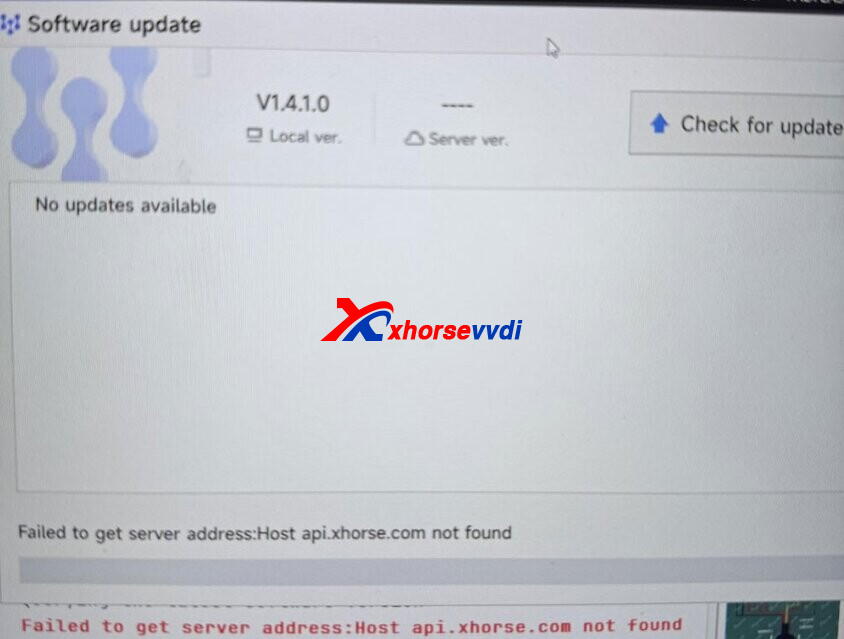
Recently one customer reported that the software failing to locate the server, completely blocking updates or device synchronization.
This is usually a local configuration glitch that you can fix yourself in less than 5 minutes.
Here is the exact step-by-step solution to get your Multi-PROG back online.
The Error Message
“Failed to get server address: Host api.xhorse.com not found”
Step-by-Step Solution
Step 1: Verify Server Status
First, let’s make sure the Xhorse servers aren’t actually down.
1.Ensure your computer’s internet connection is working perfectly.
2.Open your web browser and go to: [https://api.xhorse.com]
3.If the page loads and displays a response like {“message”:”Forbidden”}, that means the Xhorse server is up and running, meaning the block is strictly inside your PC’s software.
Step 2: Wipe the Corrupted Config Files
The issue is almost always a corrupted configuration folder. Let’s force the software to rebuild it.
1.Close Multi-PROG software completely.
2.Open File Explorer on your PC and navigate to the following directory: C:\Users\YOUR_USERNAME\AppData\Roaming\ (Note: Replace “YOUR_USERNAME” with your actual Windows account name).
3.Locate the folder named Multi-PROG.
4.Right-click and rename it to Multi-PROG_old.
Step 3: Relaunch and Update
1.Open your Multi-PROG software again.
2.The software will instantly notice the missing folder and automatically generate a fresh, clean configuration directory.
3.Go straight to the Database Update section and run the update.
The software should now connect seamlessly, bypass the server error, and successfully download the latest database version!
Skype: xhorsevvdi.com
Whatsapp: https://wa.me/8613983756354


 Whatsapp:
 Skype: