
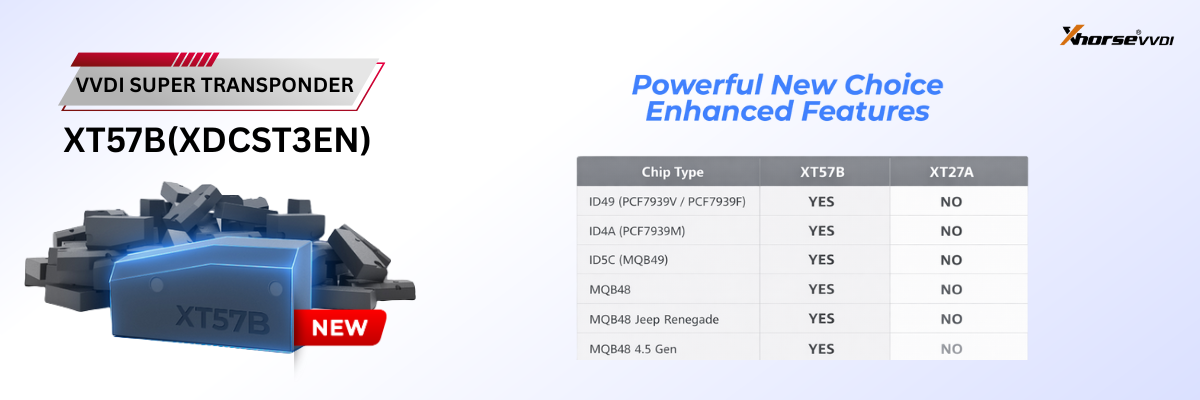

Learn how to use Xhorse VVDI Key Tool Max Pro to add a new smart key to a 2017 Toyota Camry Hybrid. This guide walks through the key registration procedure and shows how to successfully program an additional smart key when existing keys are available.
Operation Guide
Step 1
Power on VVDI Key Tool MAX Pro and enter the menu: Immo Programming → Toyota
Step 2
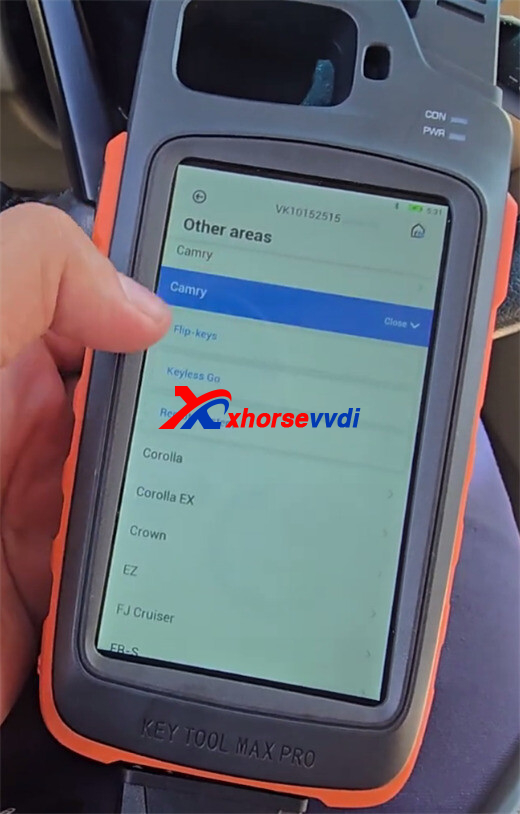
Select the vehicle by region: Select by Area → Other areas → Camry
Step 3
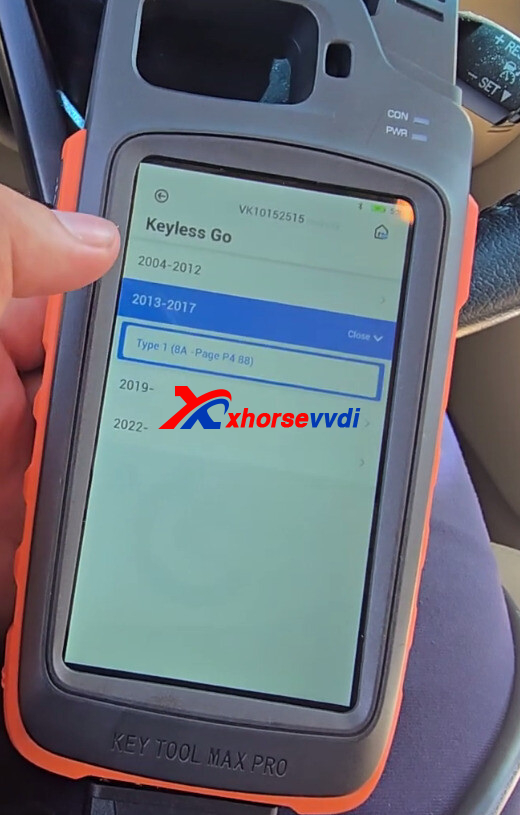
Enter the key programming menu: Keyless Go → 2013-2017 → Type 1 (8A-Page P4 88)
Step 4
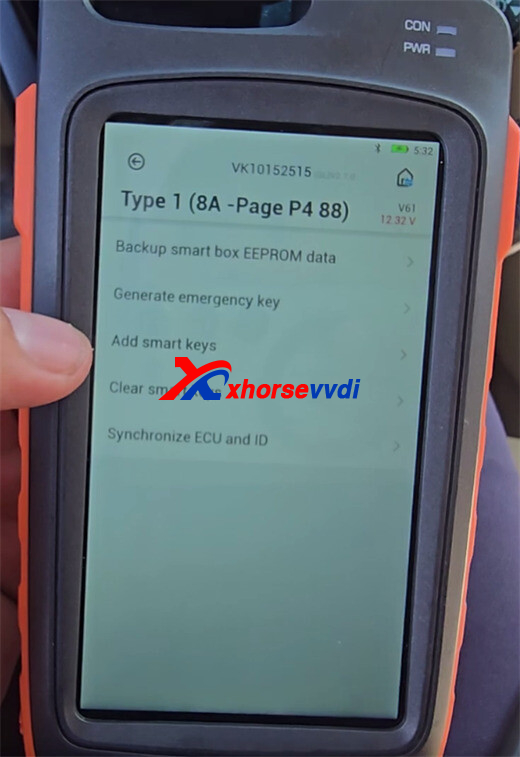
Select Immo Programming.
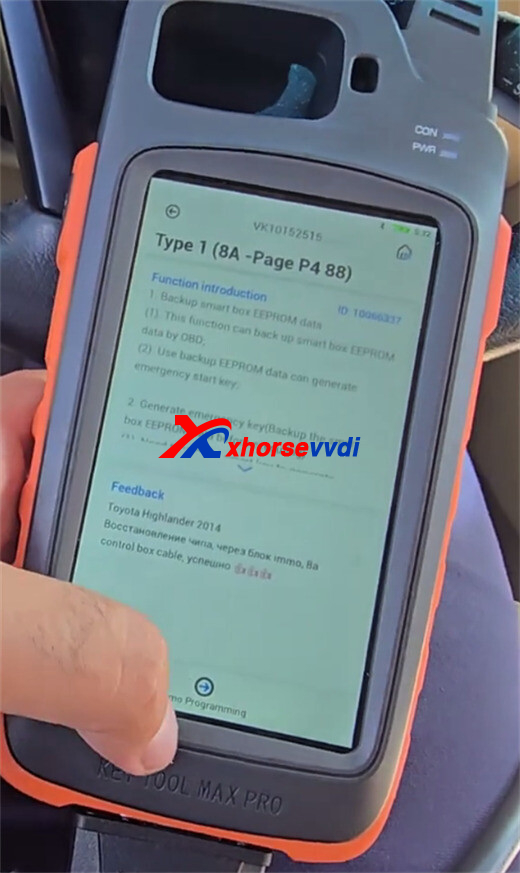
The system will display available functions, including:
- Backup smart Box EEPROMdata
- Generate emergency key
- Add smart keys
- Clear smart keys
- Synchronize ECU and ID
Step 5
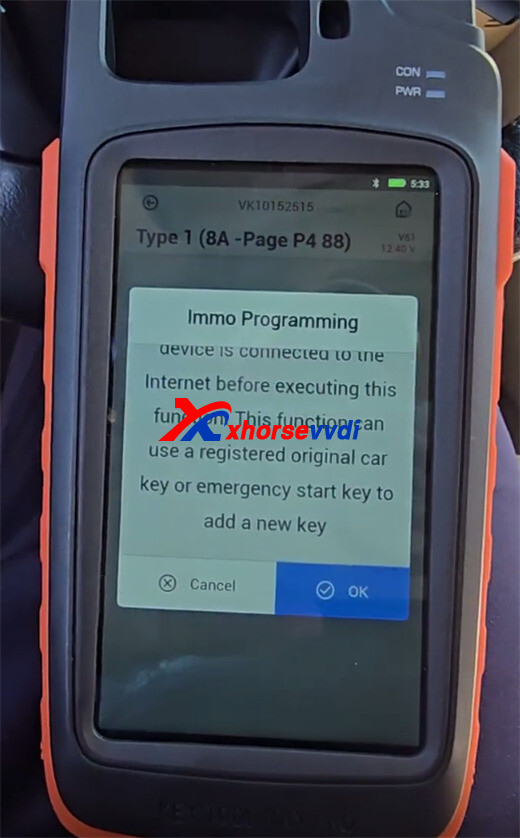
Choose Add smart keys.
The tool will remind you that an internet connection is required for this function.
Connect the device to the network and tap OK.
Step 6
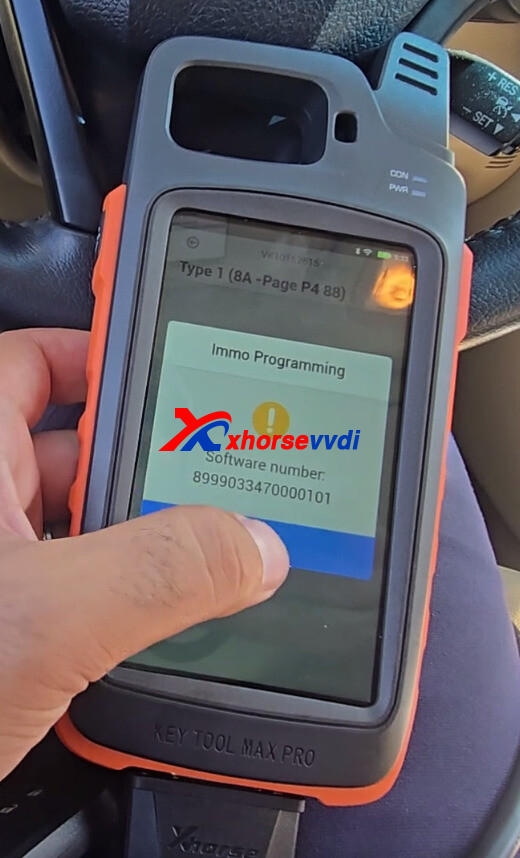
Turn the ignition ON as instructed by the tool, then tap OK.
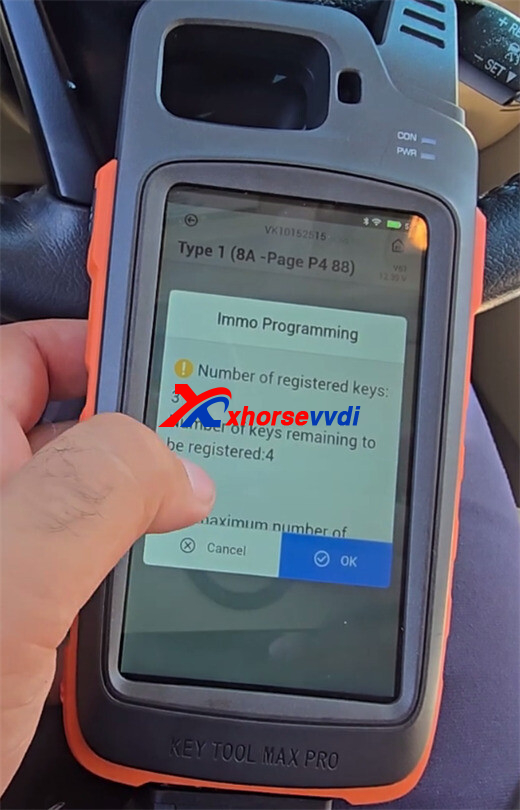
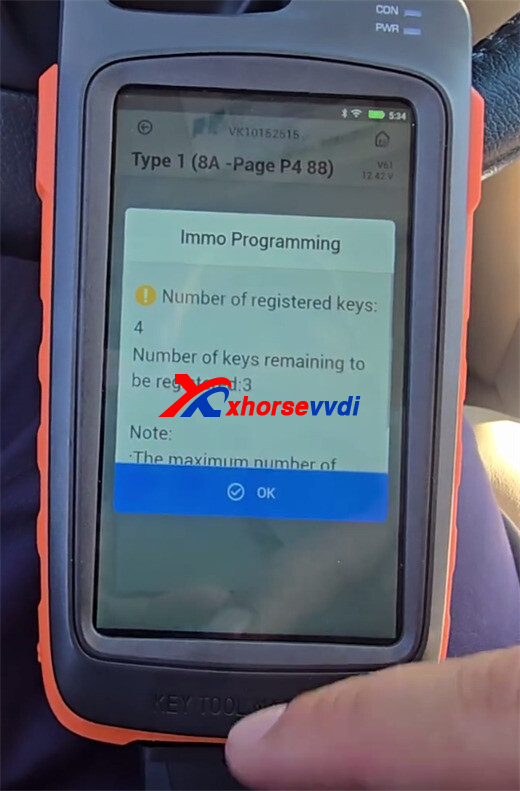
The tool will read the vehicle information and display:
- Number of registered keys
- Number ofkeys remaining to be registered
Step 7
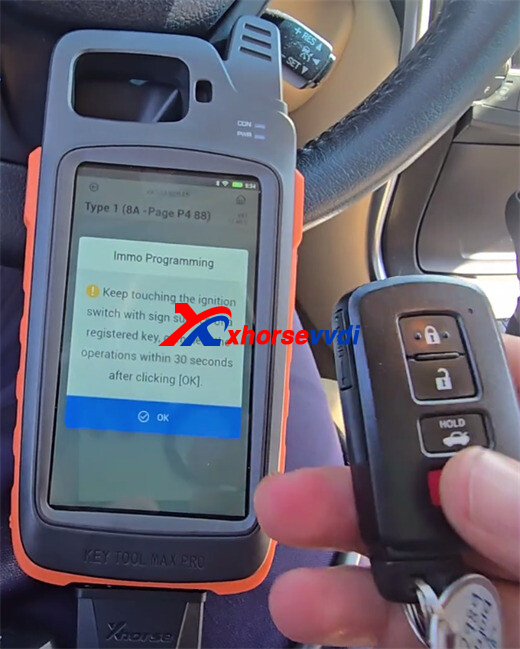
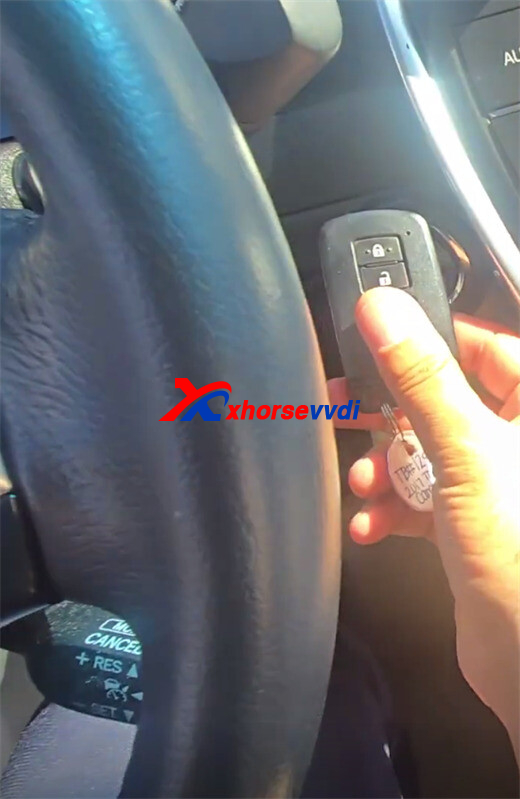
When prompted, place an already registered smart key against the ignition start button.
Tap OK and keep the key in position until the confirmation beep is heard.
Step 8
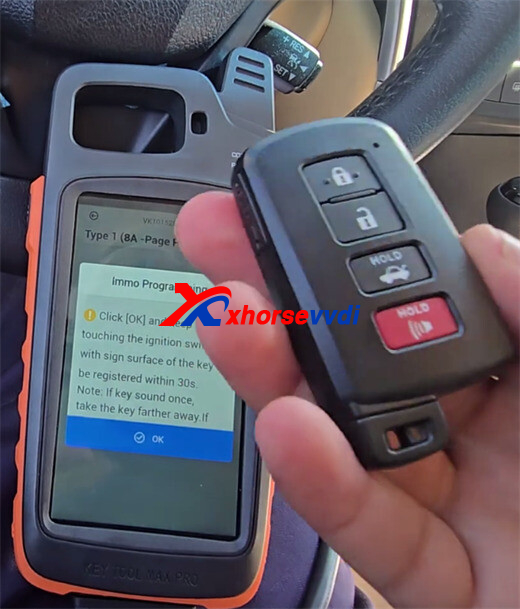
After the original key is verified, place the new smart key against the ignition button.
Tap OK and keep the key close to the button until the tool detects it.
Step 9
Wait while the system performs the programming process.
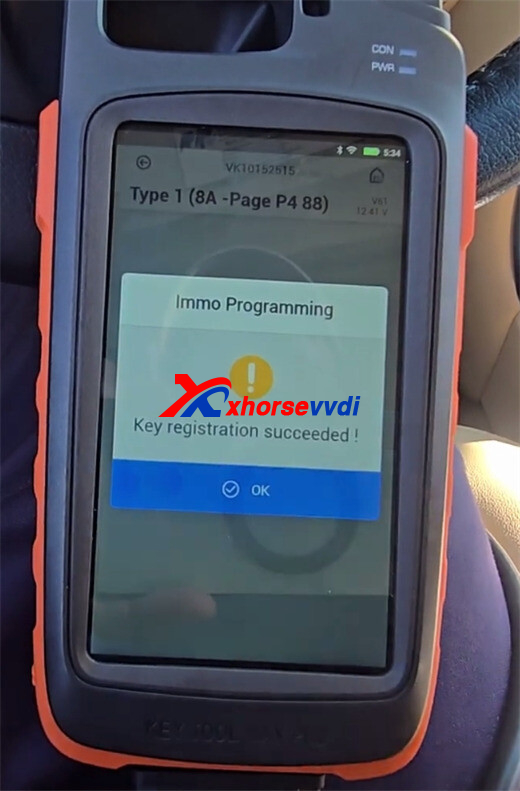
The tool will display:
- Key registration succeeded!
Step 10
After programming is completed, verify the result.
In this example, the number of registered smart keys increased from three keys to four keys, confirming that the new key was successfully added by Xhorse Key Tool Max Pro.
Skype: xhorsevvdi.com
Whatsapp: https://wa.me/8613983756354


 Whatsapp:
 Skype: