
Adding a spare smart key to a 2020 Ford Fiesta is easy with the Xhorse VVDI Key Tool MIDI or Key Tool Plus. In this guide, we’ll show you how to program a new key for the Ford Fiesta after verifying that the original key is no longer functioning properly.
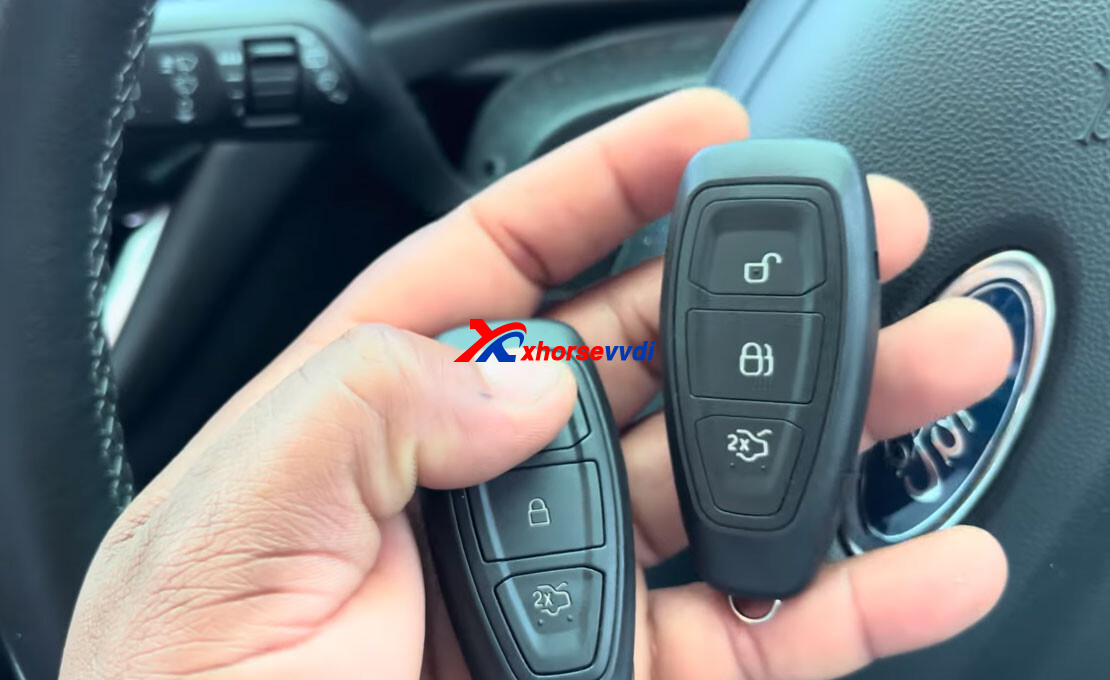
Step by Step:
1. Choose the Correct Vehicle Profile
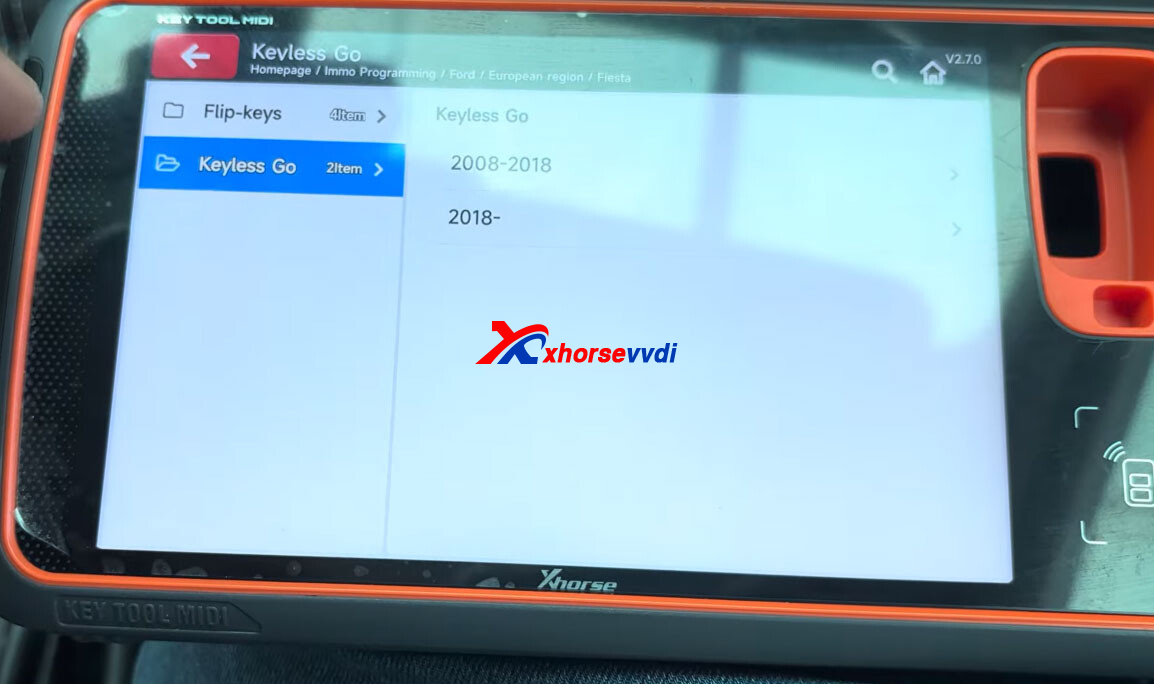
Switch on the ignition and go to IMMO Programming → Ford → Europe → Fiesta → KeylessGo → 2018+.
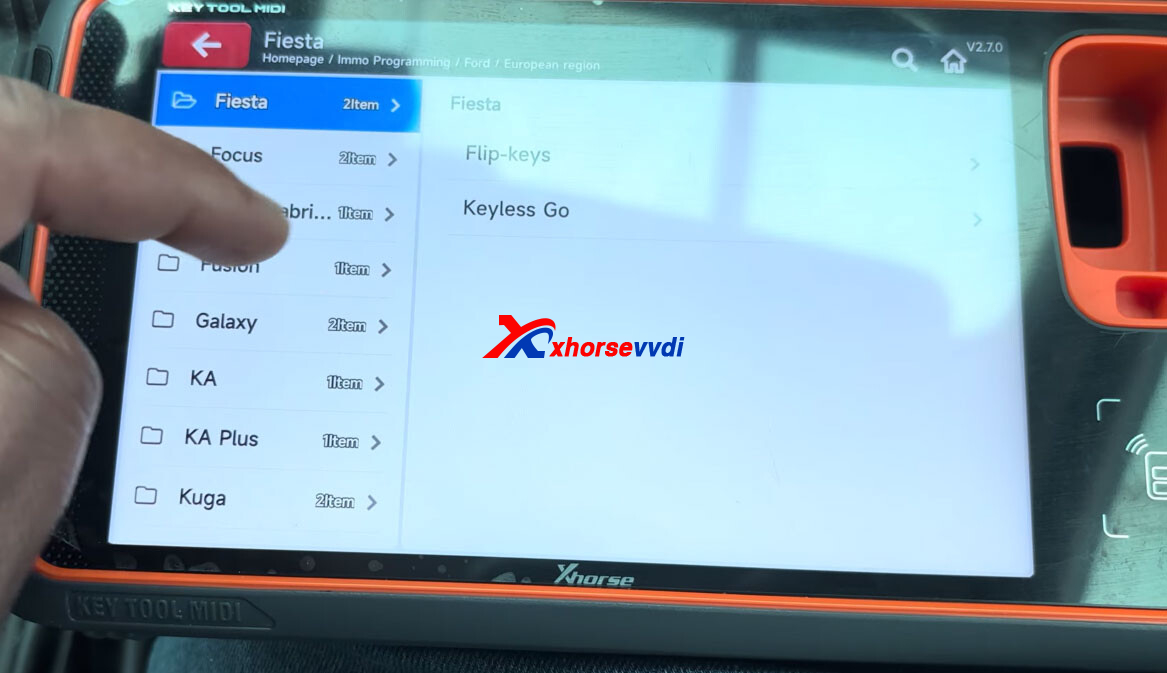
2. Prepare the Vehicle
Follow the device prompts to open and close the driver’s door, then switch off the ignition. Complete the steps below:
Open and close the driver’s door once.
Turn off the ignition.
Press “OK” on the device to continue.
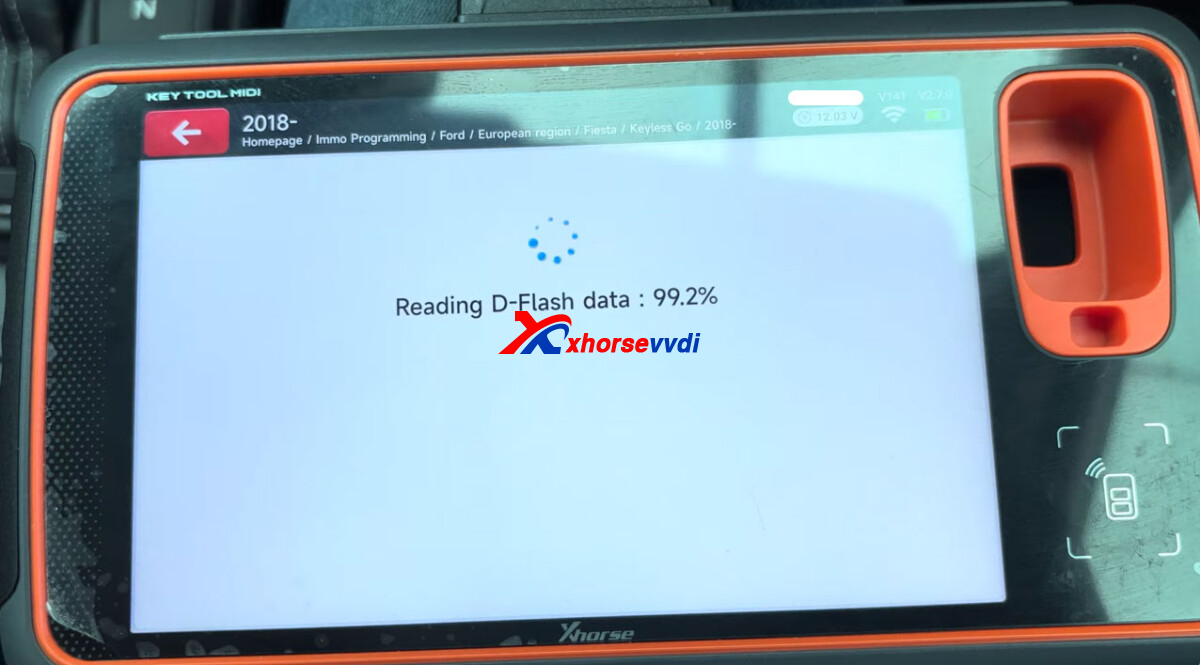
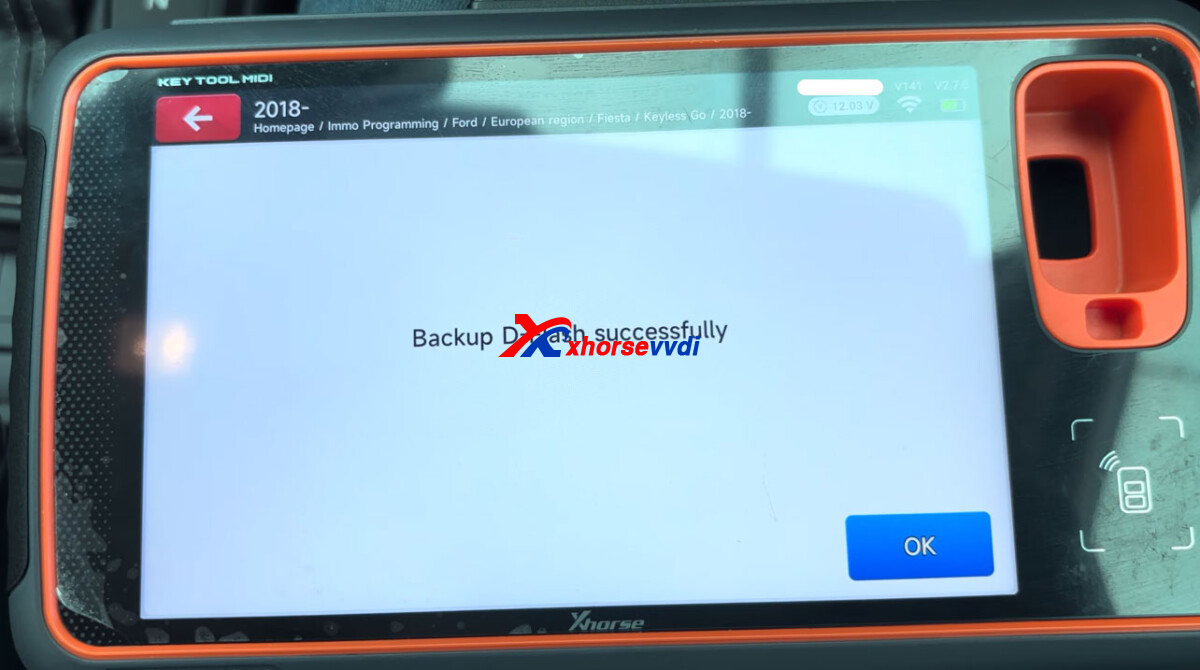
3. Back Up the D-Flash Data
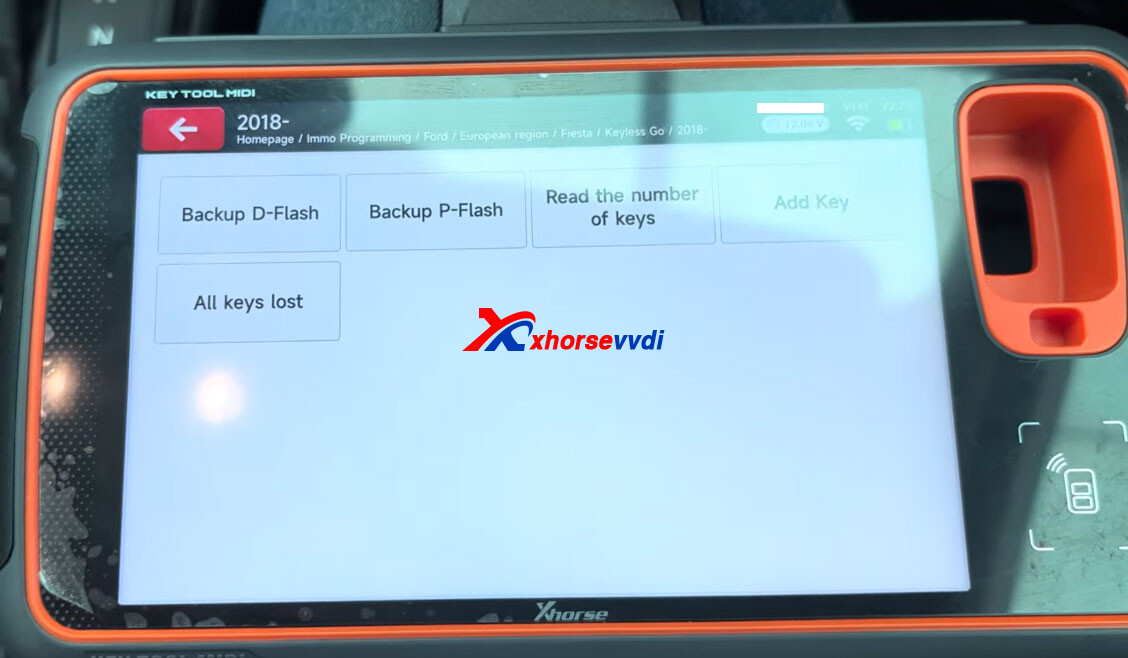
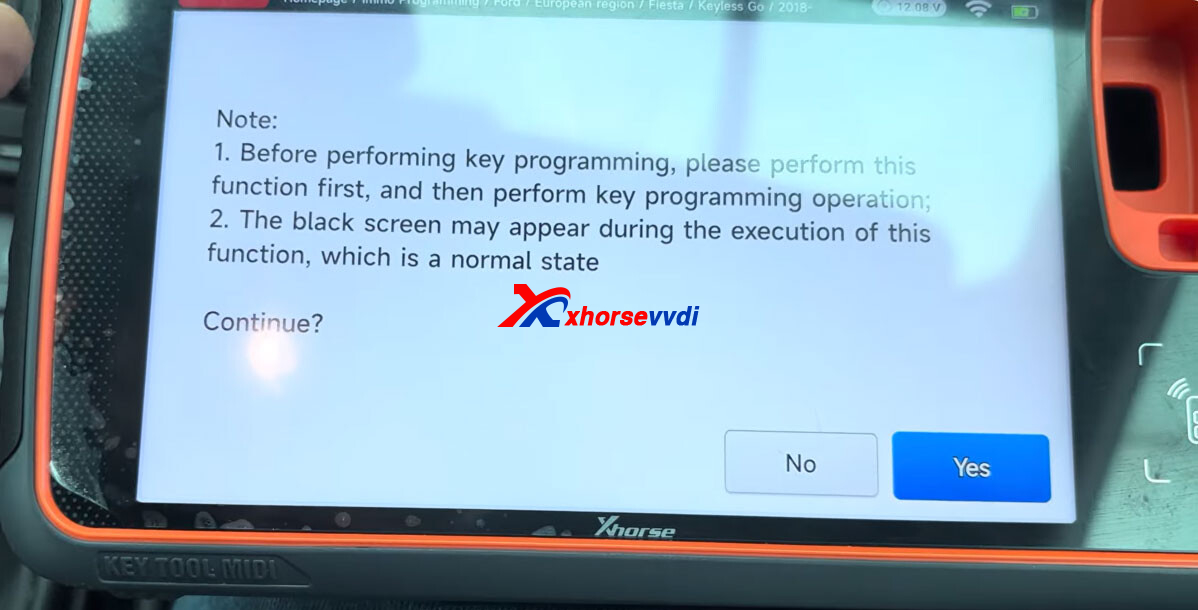
Before programming a new key, make sure to back up the D-Flash data to protect the vehicle’s original information.
4. Check the Number of Registered Keys
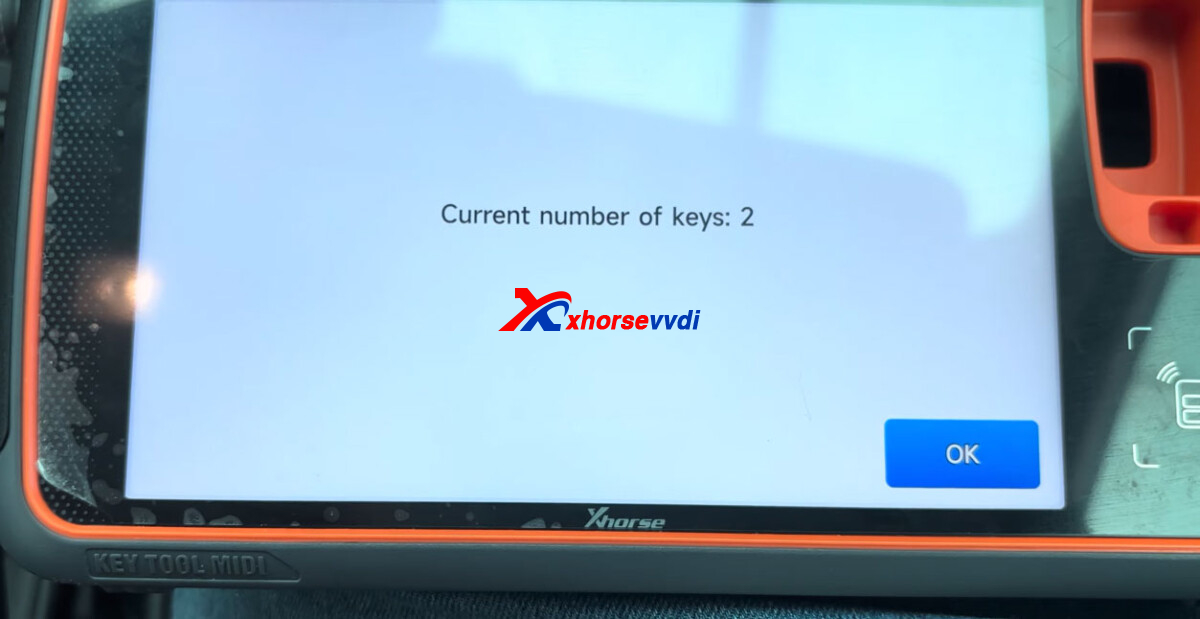
The device will detect the number of keys currently programmed to the vehicle. In this example, two keys were already registered.
5. Add the New Key
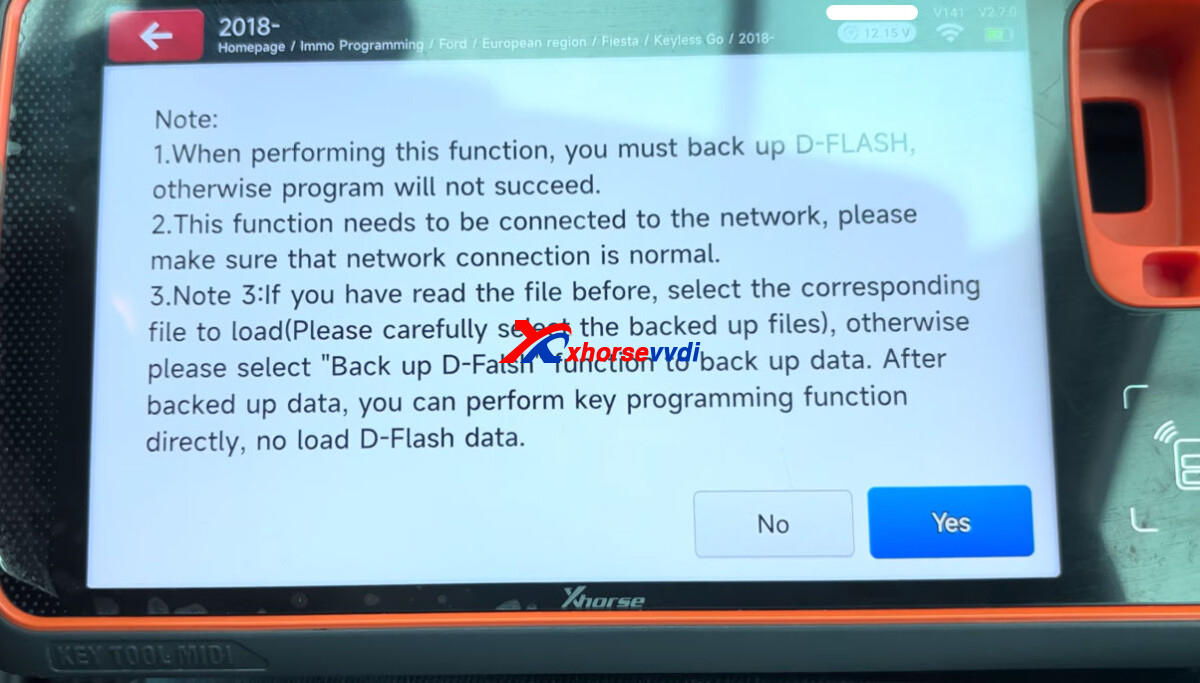
Choose the “Add Key” function. The system will prompt you to back up the D-Flash again, but this step has already been completed.
Important: Keep the ignition switched off throughout the entire procedure. All operations must be performed with the ignition off.
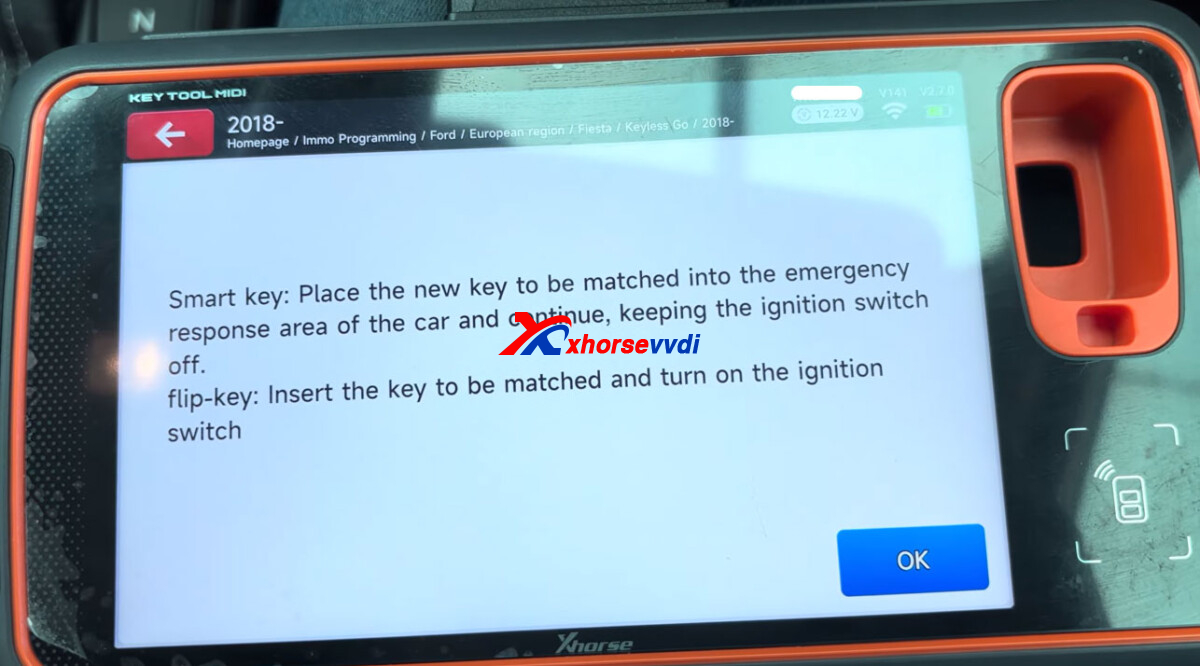
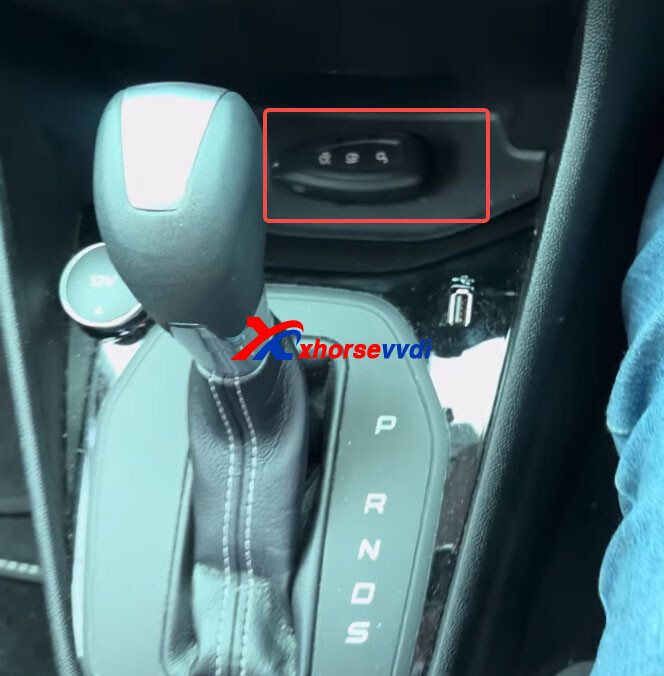
6. Place the New Key in the Sensing Area
Locate the key sensing area inside the vehicle, marked with a key symbol. Place the new smart key in the sensing spot and press “OK” on the device. Make sure the key is positioned correctly so the vehicle can detect it and complete the programming process.
7. Verify the Key Count
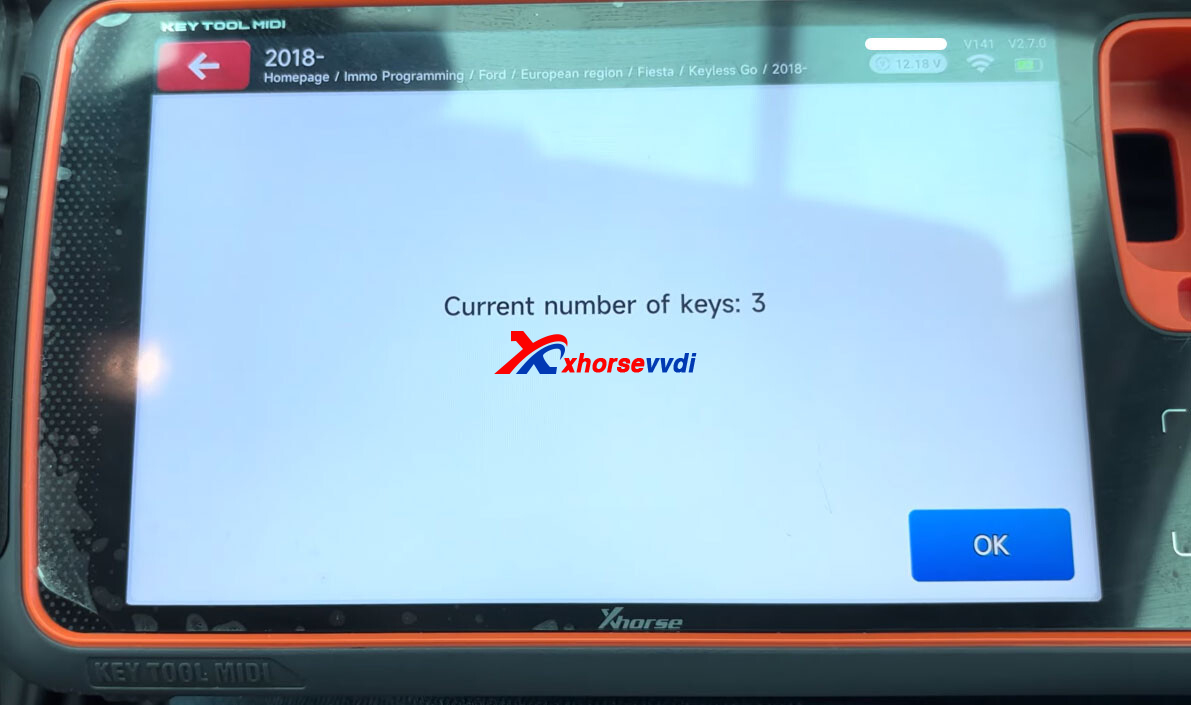
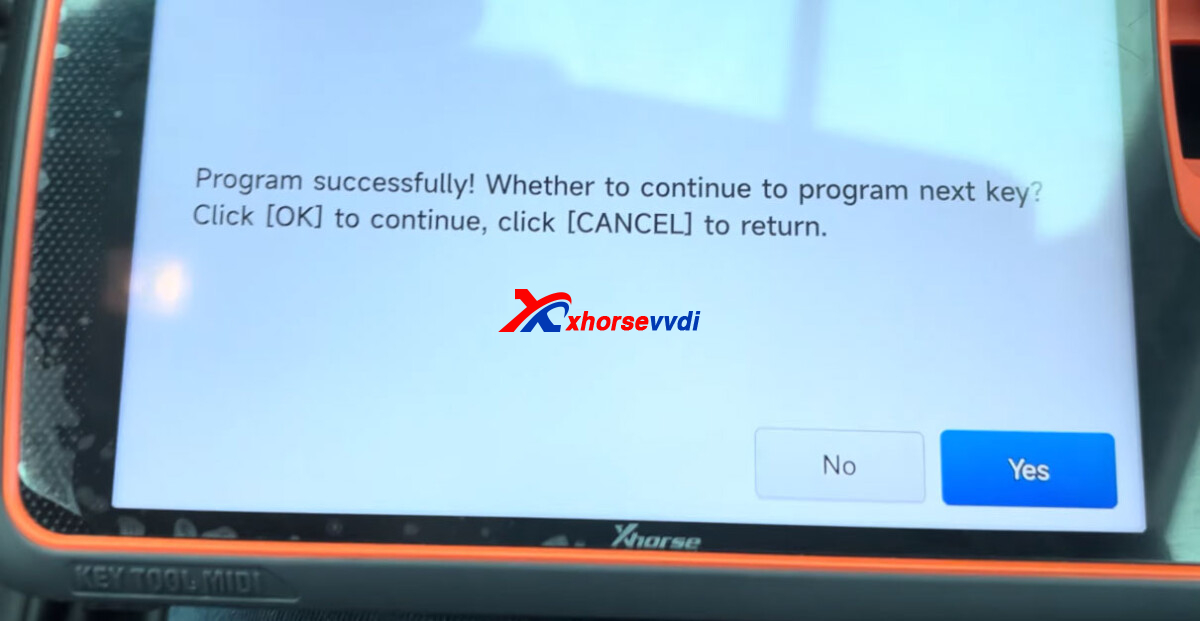
The device should now show a total of three keys (two original keys and one newly added key). Make sure the displayed count is correct.
Testing the New Key
After programming, verify that both keys work properly:
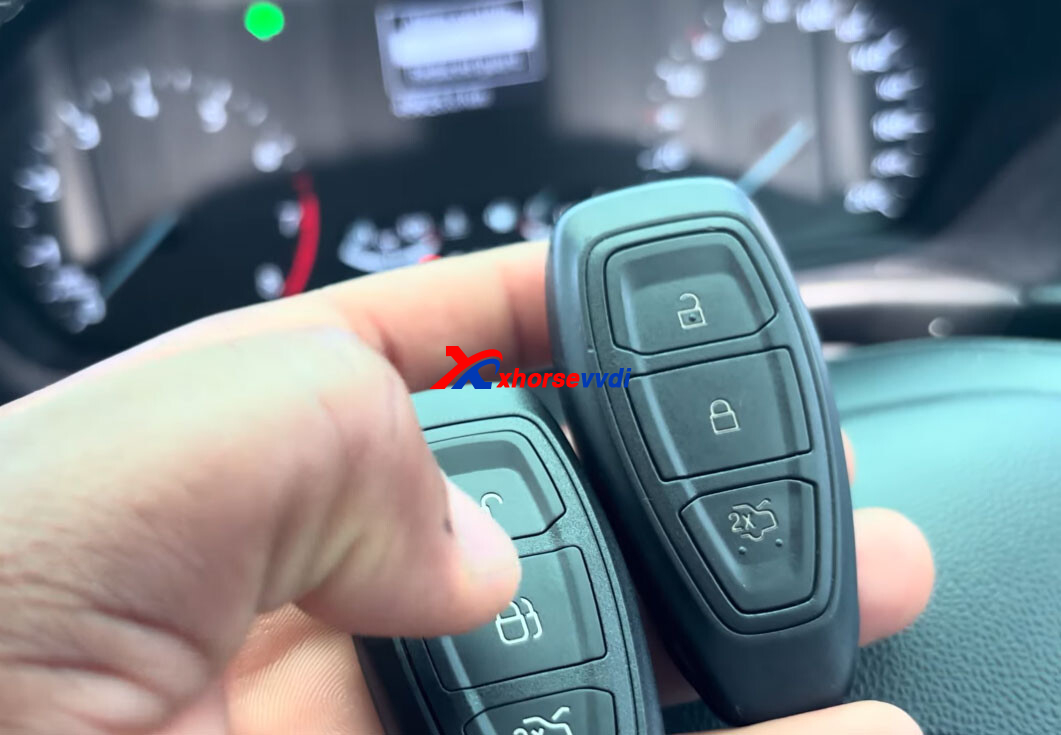
Use the newly programmed key to start the vehicle.
Test the original key to confirm it still functions normally.
Both keys worked successfully after programming.
Key Takeaways
Keep the ignition off throughout the key programming process.
Back up the D-Flash data before adding a new key.
The 2020 Ford Fiesta has a designated key sensing area marked with a key symbol, which works even without a key battery.
Always test both keys after programming to ensure they can start the vehicle.
This procedure is designed specifically for the 2022 Ford Fiesta and requires a compatible key programming tool. Make sure your device and software are updated to ensure smooth and reliable results.
Skype: xhorsevvdi.com
Whatsapp: https://wa.me/8613983756354


 Whatsapp:
 Skype: