
If your Xhorse Dolphin XP005L key cutting machine powers on normally but the touchscreen stays completely black or does not respond, follow the step-by-step troubleshooting process below to identify the cause and restore normal display operation.
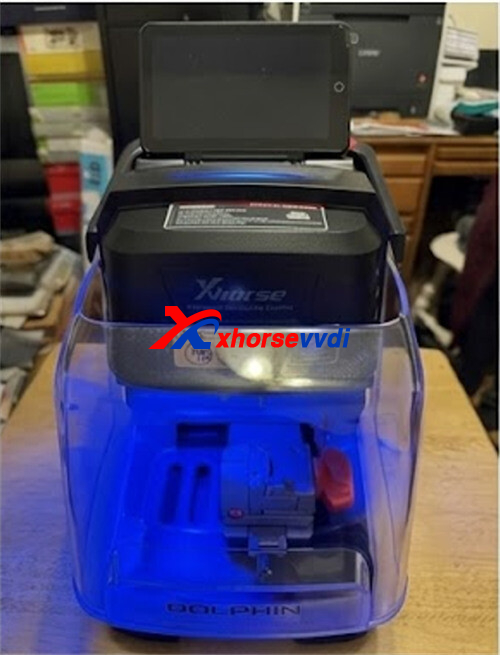
Step-by-Step Troubleshooting Guide
Step 1: Remove the Housing
Unscrew the fastening screws on both sides of the Dolphin XP005L, then carefully lift off the outer housing to access the internal components.
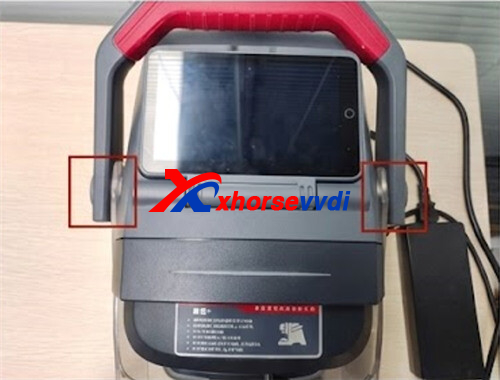
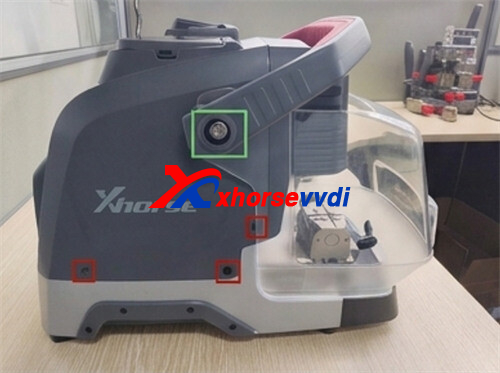
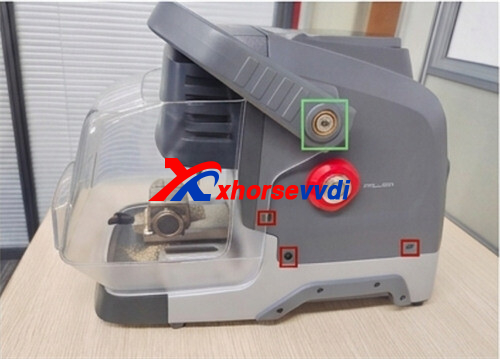
Step 2: Check the Screen Ribbon Cable
Open the machine and inspect the LCD ribbon cable connection. Make sure the cable is securely connected and has not become loose due to shipping, vibration, or frequent use. Reconnect it firmly if any loose connection is found.
Step 3: Diagnose Internal Screen Failure
If the external display cable is properly connected but the screen still remains black, the issue is most likely due to an internal hardware failure within the touch screen assembly.
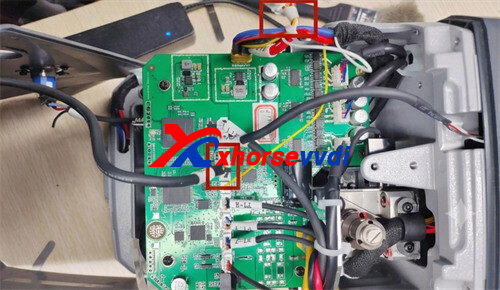
Warranty Note: If you confirm an internal screen defect and your Dolphin XP005L machine is still within its factory warranty period, do not attempt to dismantle the screen module. Contact your authorized dealer to send the screen assembly back for official replacement or repair.
Skype: xhorsevvdi.com
Whatsapp: https://wa.me/8613983756354


 Whatsapp:
 Skype: