

This guide outlines the required hardware checks and generation steps for writing Toyota and Lexus smart key firmware onto an Xhorse Toyota XM38 remote using VVDI Key Tool Max Pro.
Hardware & Network Requirements
- Remote Compatibility:Use only the Toyota-specific Xhorse XM38 smart key. Other XM38 variants are not compatible with Toyota smart systems.
- Power Supply:A working battery must be installed in the remote prior to generation (verify via the remote LED indicator; high-drain brands like Energizer are recommended to prevent write failures).
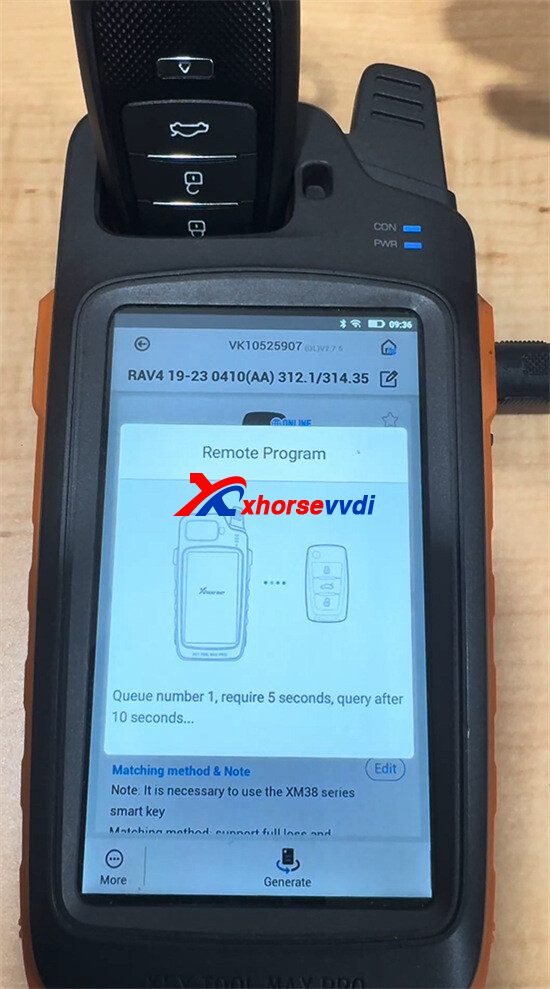
- Network Connection:Key Tool Max Pro must be connected to Wi-Fi or a mobile hotspot during generation to fetch the required firmware file.
Remote Generation Workflow
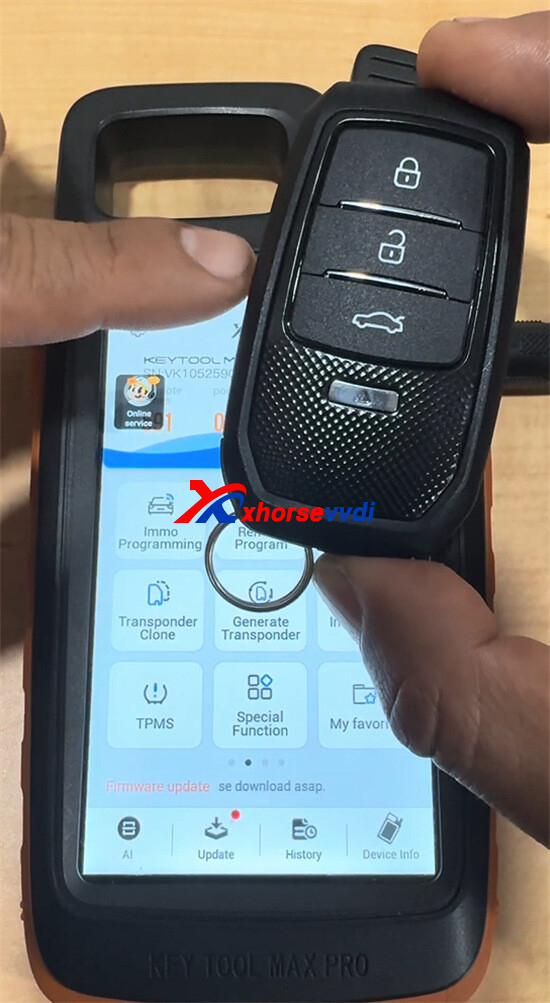
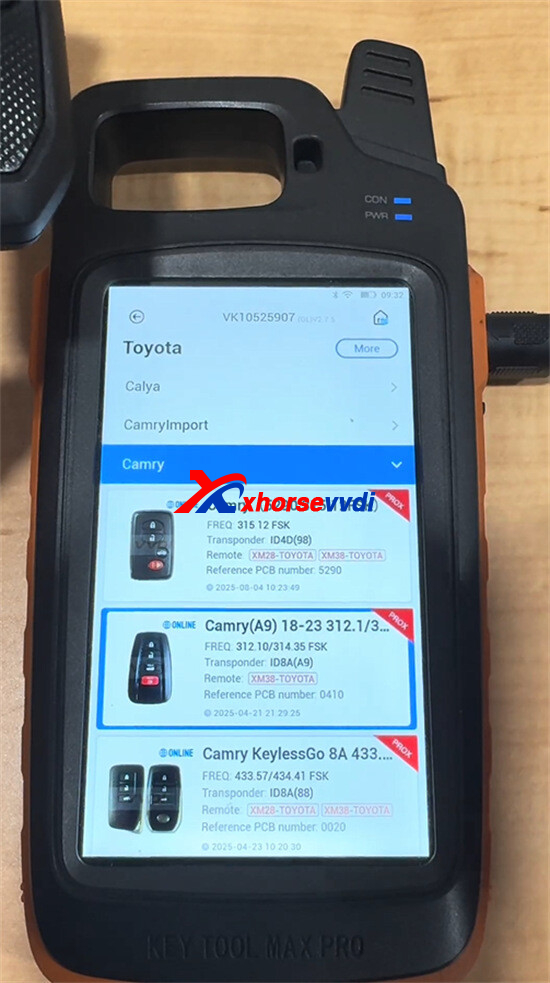
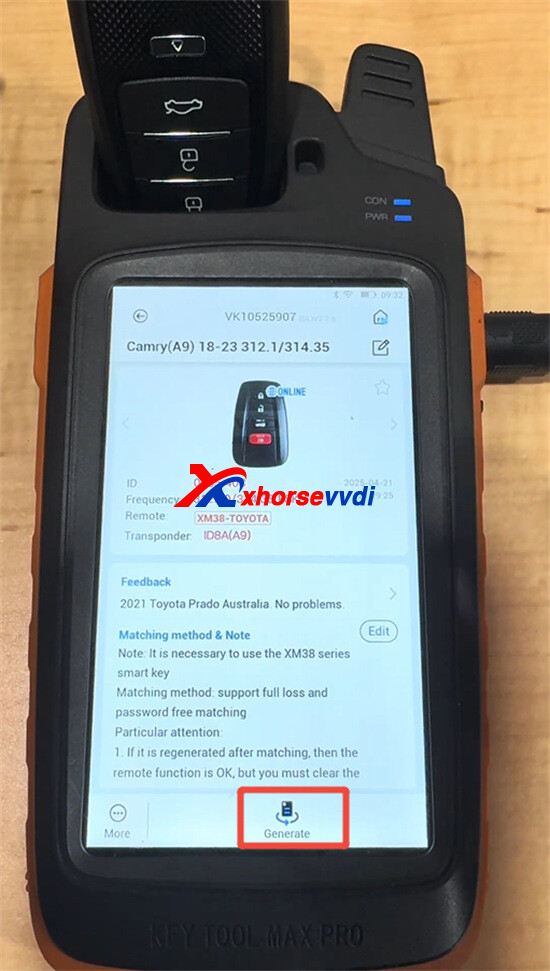
- On Xhorse Key Tool Max Pro, navigate to Remote Program > Toyota.
- Select the exact model and year (e.g., Camry 2018–2023).
- Insert the battery-powered XM38 remote into the induction coil at the top of the device.
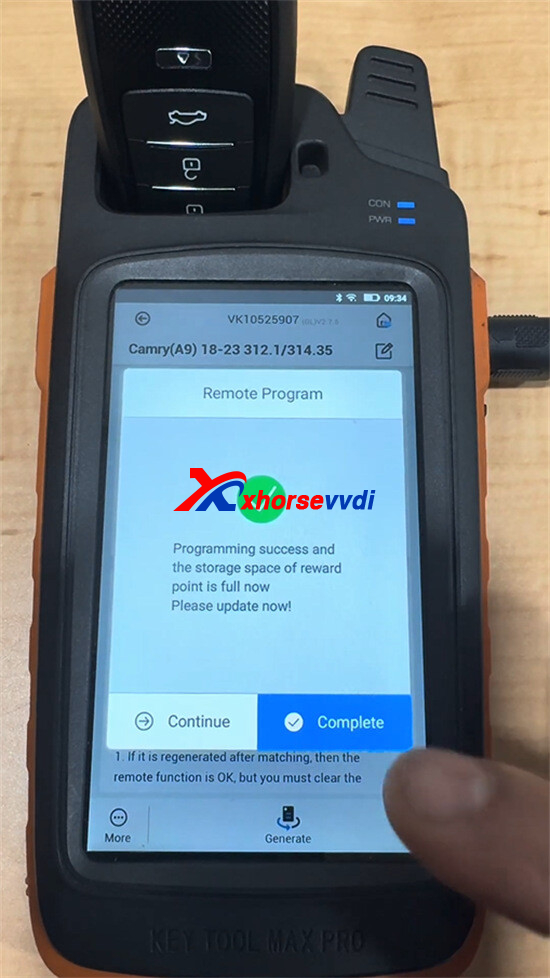
- Press Generateand keep the key steady until data writing finishes. Once completed, the remote functions as a ready-to-program replacement key.
Overwriting Existing Remote Data
- No Erase Step Required:Xhorse XM38 remote supports direct file overwriting.
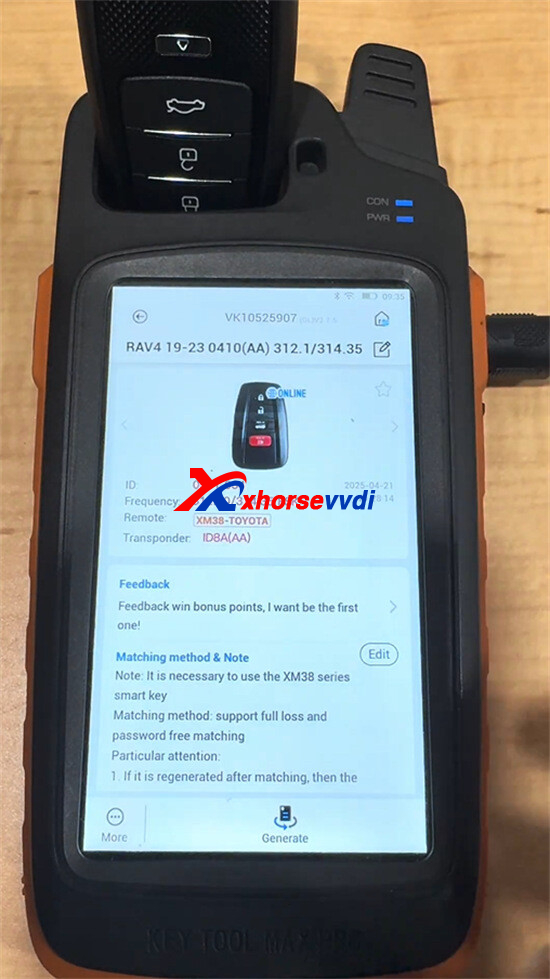
- To reassign the key to another supported model (Camry, RAV4, Corolla, Highlander, or Lexus), select the new vehicle profile(e.g.RAV4 19-23) in the menu, place the remote back in the coil, and run Generate
Skype: xhorsevvdi.com
Whatsapp: https://wa.me/8613983756354


 Whatsapp:

 Skype: