
If your Xhorse Key Tool Plus Pad cannot communicate with the vehicle or the built-in VCI self-test fails, the issue is often related to the internal VCI hardware, OBD communication circuit, or connection port. Before assuming a hardware fault, perform several basic checks to rule out power supply problems, cable issues, or software configuration errors. These simple tests can help determine whether the problem can be resolved on-site or if the device requires professional repair.
Step 1: Correct the Test Setup
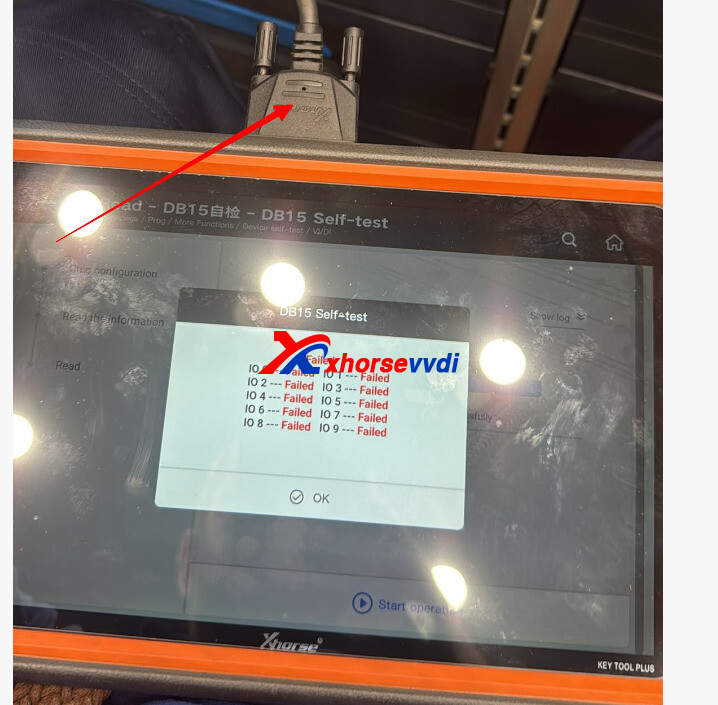
Disconnect All Cables: Ensure no OBD cables, adapters, or programming cables are connected to the DB15 port while running the self-test.
Run the Test: Navigate to the self-test function on the tablet without anything plugged into the bottom of the device.
Step 2: Check for Pin Damage
Visually inspect the pins inside the DB15 port.
Check for bent, pushed-in, or corroded pins that might be preventing proper contact or causing an internal short.
Step 3: Perform a Hardware/VCI Reset
Go to the update section of your device and ensure your VCI firmware is completely up-to-date.
Restart the tablet entirely and run the self-test one more time.
If the test still fails after removing all cables and restarting the device, your VVDI Key Tool Plus is experiencing an internal hardware fault. You will need to contact your original distributor or Xhorse to arrange a device repair.
Skype: xhorsevvdi.com
Whatsapp: https://wa.me/8613983756354


 Whatsapp:
 Skype: