
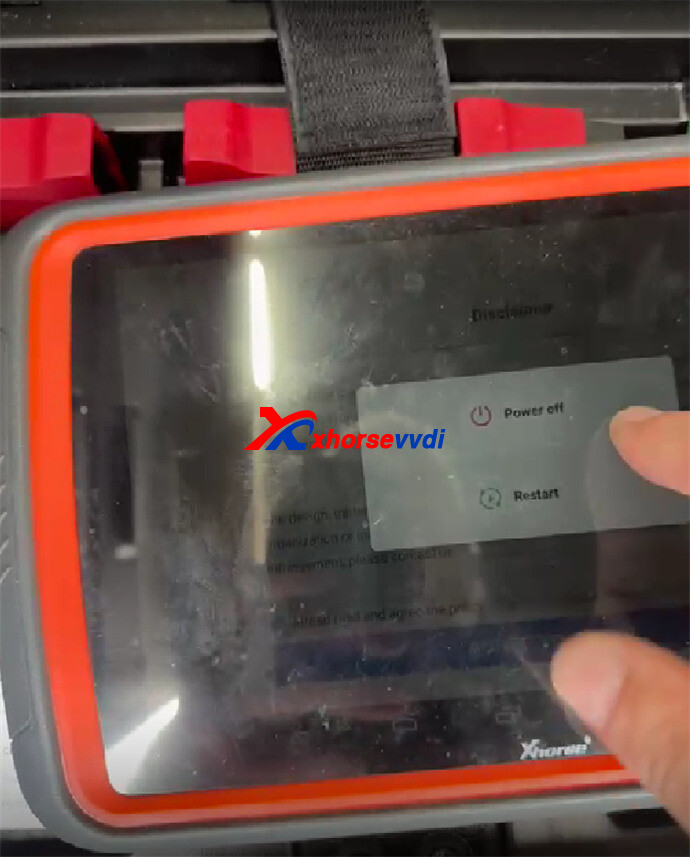
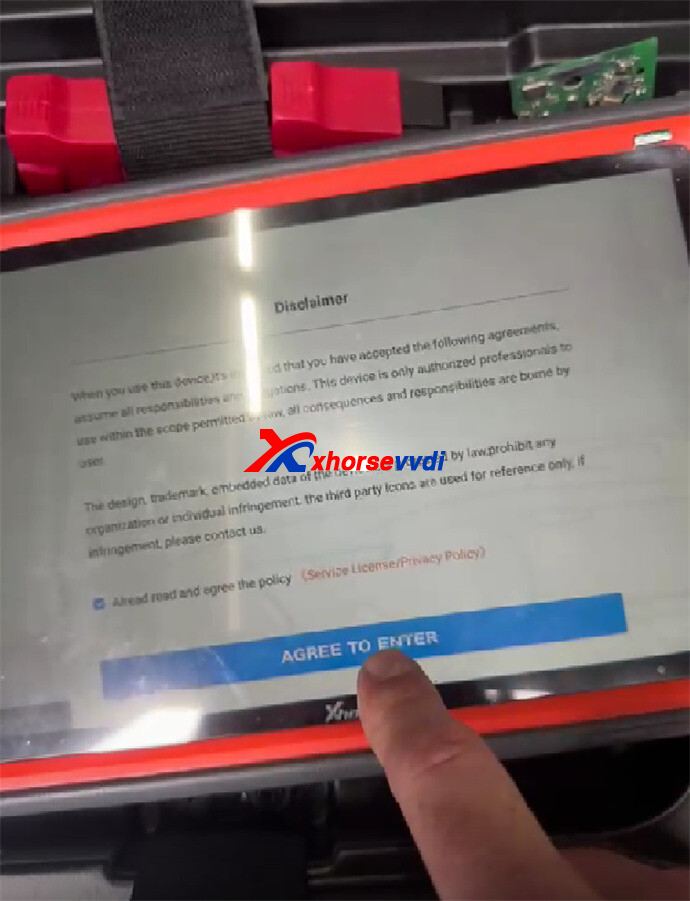
One customer reported that the screen of Xhorse VVDI Key Tool Plus Pad was stuck and cannot be pressed anywhere.
Solution:
It is usually caused by a frozen Android operating system, corrupted immo databases, or an incomplete firmware update.
- Perform a Hard Reset
Hold the Power Buttonfor 20 to 25 secondsto force the tablet to shut down. Wait 10 seconds, then press the power button again to reboot it.
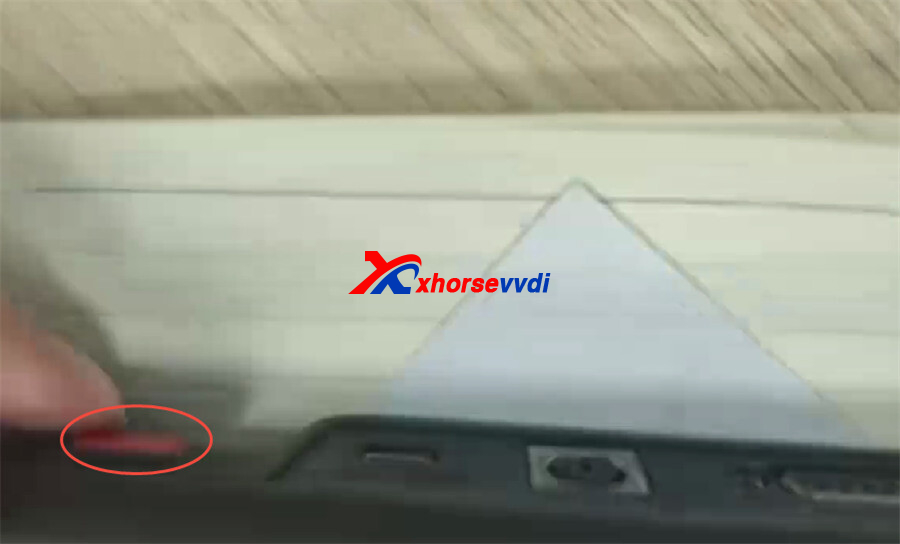
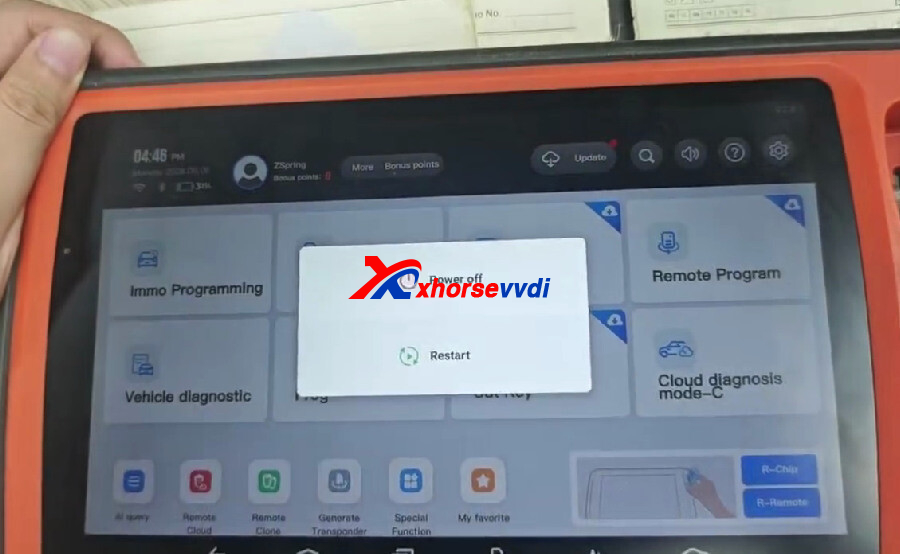
- Clear App Data / Factory Reset
If it keeps freezing:- Boot into the recovery or settings menu and clear the app cache.
- If the problem persists, go into your settings and perform a Factory Restore.
- Run a Fresh Firmware Update
After a reset, update your device:
- Do not update over a weak or unstable Wi-Fi connection.
- Connect to your smartphone’s mobile hotspotinstead, as some shop routers block Xhorse server data packets.
- Go to the Update Centerand download the latest software, firmware, and IMU databases.
- Check for Corrupted Databases
If it freezes specifically when trying to read or generate certain keys (like MQB keys), the database files may be corrupted. Navigate to the Update Centerin your app and manually force a redownload of the IMMO and Prague databases.
If your VVDI Key Tool Plus continues to freeze, won’t boot, or the screen remains black, it may require a firmware reflash via a PC or a repair by Xhorse.
Skype: xhorsevvdi.com
Whatsapp: https://wa.me/8613983756354


 Whatsapp:
 Skype: