
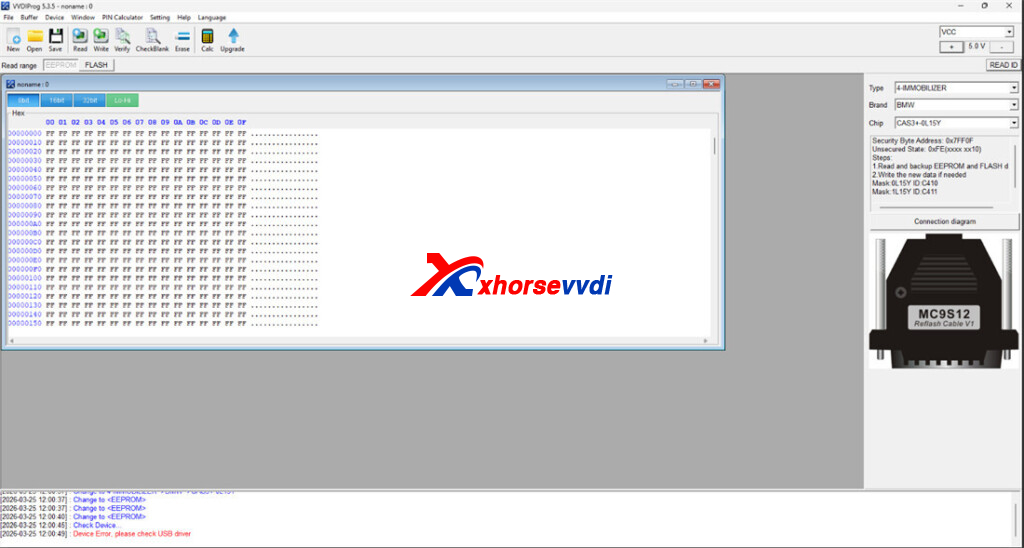
A user recently reported an issue while using VVDI Prog V5.3.5 to read and write a BMW CAS3+ 0L15Y module. During the operation, the software displayed the error message:
“Device Error, please check USB driver.”
If you encounter the same problem, follow the steps below to resolve it.
Solution
Step 1: Update VVDI Prog Software
Outdated software can often cause communication errors.
Download and install the latest version V5.3.8 from the official link:
- Download: http://dl.xhorse.com/product/vvdiprog/VVDIProg5.3.8PASSWORD123456.zip
- Password: 123456
After installation, restart your computer and reconnect the device.
Step 2: Check USB Connection
Unstable or faulty USB connections are a common cause of this error.
Replace the USB cable with a new or high-quality one
Try a different USB port on your computer (preferably a rear port on a desktop)
Avoid using USB hubs or extension cables
Step 3: Verify Device Status
Check the indicator light on the VVDI Prog device:
- If the yellow indicator flashes normally, the device is working
- If the yellow indicator does not light up or flash, the VVDI Prog Programmer may have a hardware issue
Step 4: Inspect Hardware Condition
If the error persists after completing the steps above and the indicator still does not respond:
- The VVDI Prog programmer may be damaged
- It is recommended to send the device back to the manufacturer for repair or refresh
Summary
The “Device Error, Check USB Driver” issue is usually caused by outdated software, USB connection problems, or hardware failure. Start with a software update, then check your USB setup, and finally inspect the device condition.
Skype: xhorsevvdi.com
Whatsapp: https://wa.me/8613983756354


 Whatsapp:
 Skype: