

Having trouble getting your Xhorse Key Reader to recognize a key (error message: Identification Failed)? Follow these four official troubleshooting steps—covering firmware updates, optical calibration, and hardware checks—to restore accurate key cutting data in minutes.
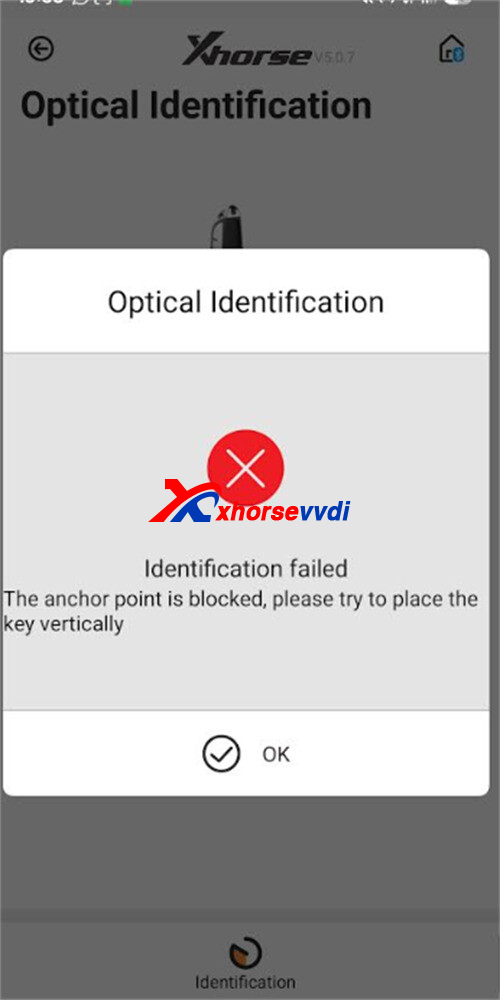
Troubleshooting Methods
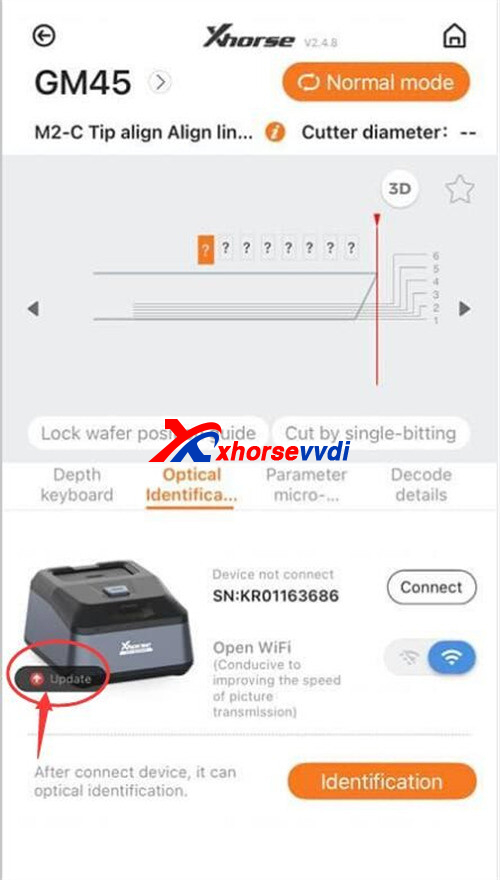
1.Update App and Device Firmware
Turn on Wi-Fi on your smartphone, open the Xhorse App, and navigate to Optional Identification. Check for updates and install the latest firmware version for your Xhorse Key Reader.
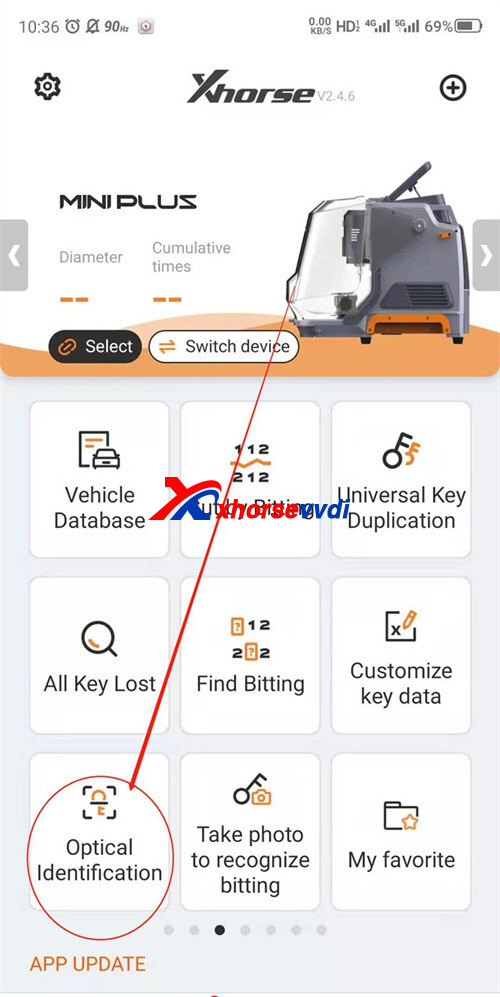
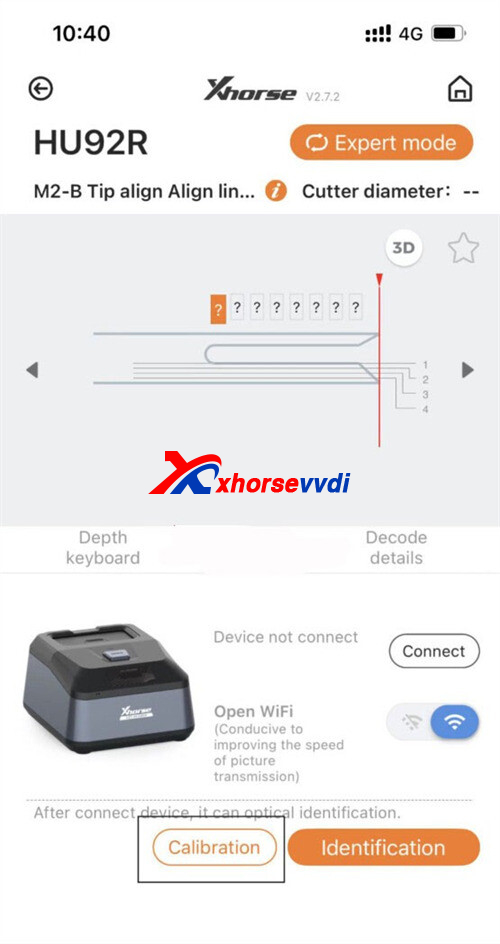
2.Run Optical Calibration
Connect your Key Reader to the app. Press and hold (or repeatedly tap) the Key Reader / optical recognition icon on the screen until the Calibration option pops up. Follow the on-screen prompts to finish calibrating the sensor.
3.Clean the Slot and Align the Key
Inspect the key slot for metal shavings or dust and clear them out. When inserting the key blade, push it straight down vertically—do not tilt it at an angle.
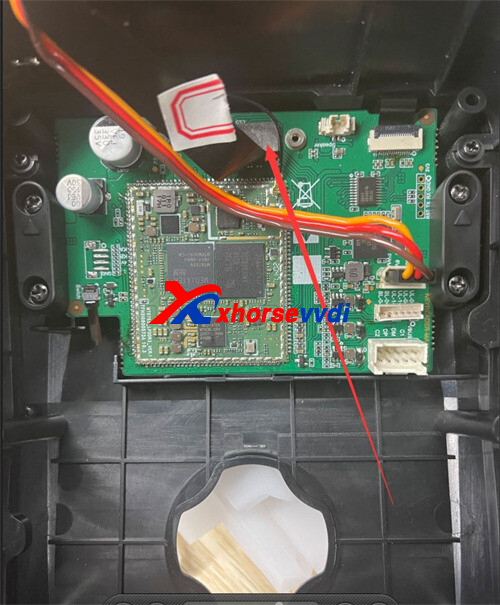
4.Reconnect the Internal Cable
If the device still fails to read keys after updating and calibrating, open Key Reader outer housing. Check the internal ribbon cable and firmly reseat it if it has come loose.
Skype: xhorsevvdi.com
Whatsapp: https://wa.me/8613983756354


 Whatsapp:

 Skype: