



This guide explains how to identify and use the checksum calculation function in the Xhorse Multi-Prog Programmer.
Step 1: Update Multi-Prog Software
Before starting, make sure your Xhorse Multi-Prog software is updated to the latest version. New releases improve stability, expand ECU support, and ensure checksum functions work correctly.

Step 2: Check ECU Checksum Support
Launch Multi-Prog and open the Device Library.
Go to the [Devices] section and browse the ECU list.
Supported EEPROM or Flash files will display a small green [C] icon, indicating checksum capability.
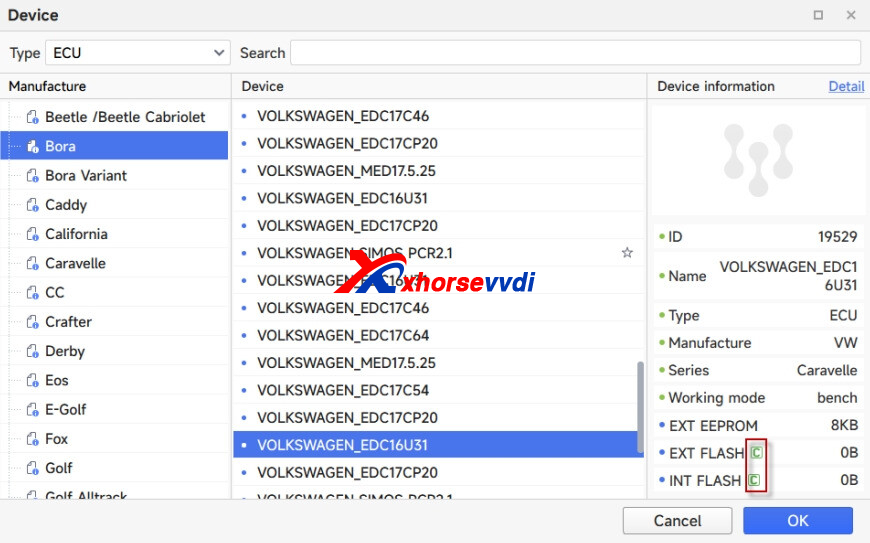

Step 3: Verify in the Main Interface
After selecting an ECU, return to the main interface.
Confirm that the same green [C] symbol appears next to the EEPROM or Flash file you plan to work with.

Step 4: Run the Checksum Calculation
For ECUs that support checksum:
Select the ECU/file.
Click [Write to ECU].
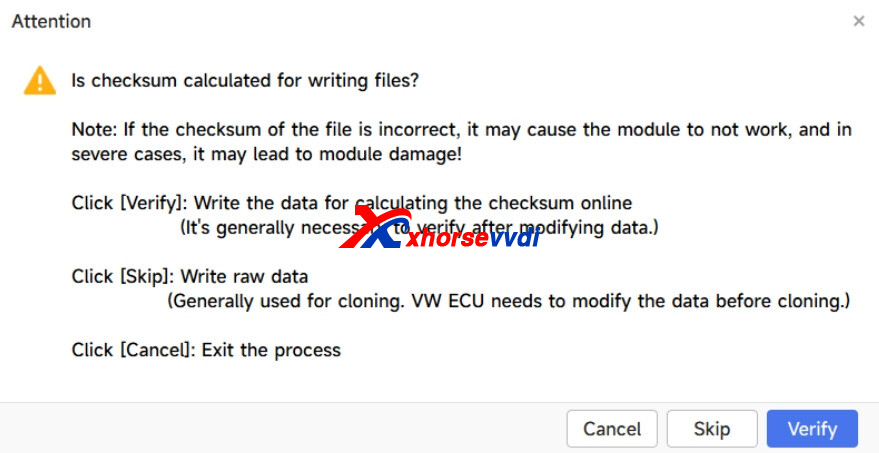
When prompted, choose whether to enable Verification.
If verification is enabled, the process may take a few minutes.
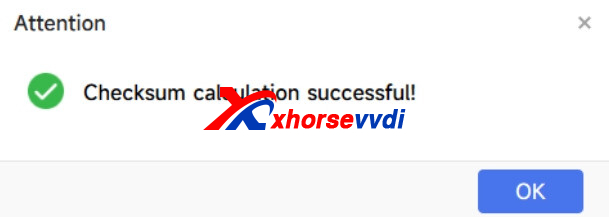
Once completed, the checksum result will be shown on screen.
Step 5: Real-World Usage Notice
Please note that the checksum verification function in VVDI Multi-Prog has not yet been fully confirmed through real vehicle testing. Always validate ECU performance in actual driving conditions after programming.
Step 6: Unsupported ECU Solutions
If your ECU does not support checksum calculation, submit a request to Xhorse Technical Support. They may provide guidance or add support in future software updates.
Skype: xhorsevvdi.com
Whatsapp: https://wa.me/8613983756354


 Whatsapp:
 Skype: