
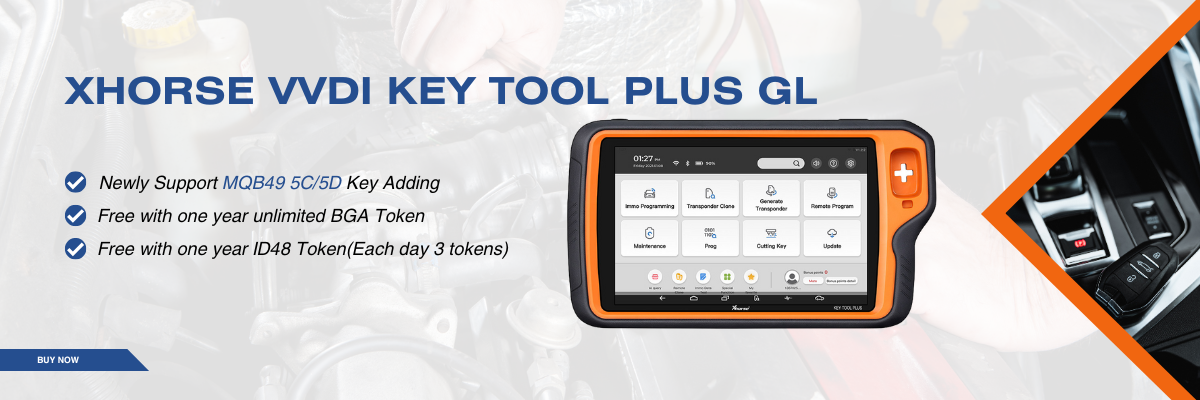

If you’re using the Xhorse VVDI Key Tool Plus with the TPMS adapter from Key Tool MIDI but see “Device Not Connected,” don’t worry. This usually comes from simple settings issues.

Here’s how to solve it fast:
1. Log in to your Xhorse account
Some TPMS functions won’t work unless you are logged in.
2. Select the correct TPMS device (VT02)
Go to:
Vehicle Diagnostics → TPMS → Equipment Configuration → Select VT02 → USB Connection
Choosing the wrong model will prevent connection.


3. Check USB Preferences
Go to Settings → USB Preferences and make sure the USB is controlled by the connected device and set to data transfer, not charging only.
Extra Tips
- Reconnect the USB cable
- Use the original Xhorse cable
- Restart Key Tool Plus
- Update firmware if needed
Following these steps should fix the connection issue quickly.


Skype: xhorsevvdi.com
Whatsapp: https://wa.me/8613983756354


 Whatsapp:
 Skype: