

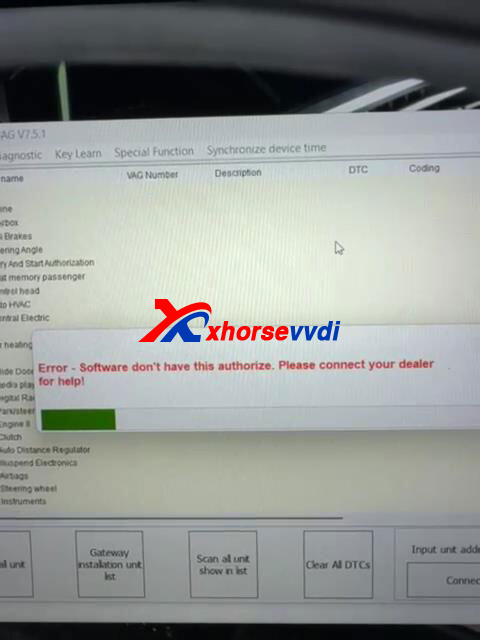
This message usually appears when the Xhorse VVDI2 tool fails to confirm its software authorization or license status. In most cases, the issue is related to firmware or software synchronization. Follow the steps below to fix it quickly and efficiently.
Step 1: Verify Device Authorization Status
① Connect your VVDI2 device and read the device information within the software.
② Check whether the authorization status is displayed correctly and shows as valid.
③ If the authorization is missing, inactive, or abnormal, move on to Step 2.
Step 2: Perform an Online Firmware Update
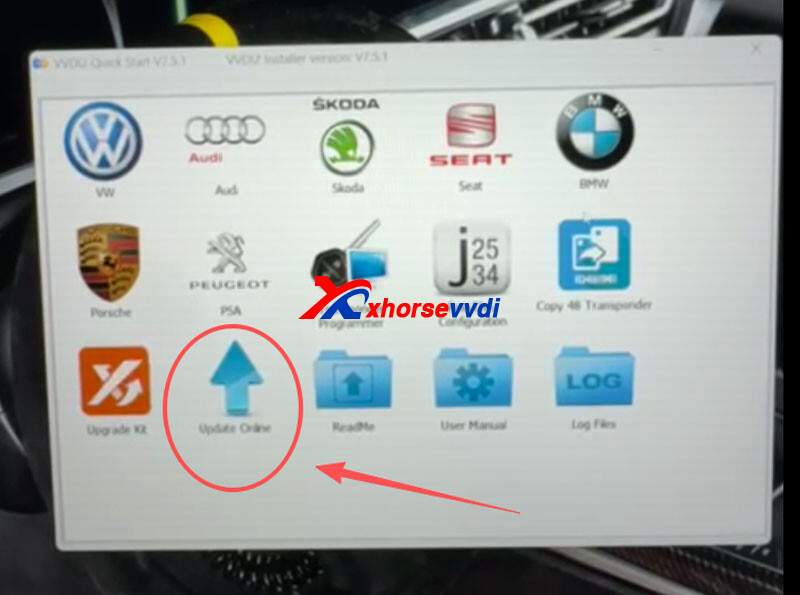
① Open the VVDI2 software and go to the Upgrade Kit menu.
② Choose “Update Online” to search for the latest firmware and software updates.
③ Once the update finishes, restart the VVDI2 device and relaunch the software, then reconnect and test again.
This update process often refreshes the authorization communication between the device and software, resolving most license-related errors.
Still Not Resolved?
Make sure your VVDI2 device was purchased from an authorized Xhorse dealer and that the installed software version supports the vehicle brand you are working on (VW, Audi, BMW, Porsche, PSA, etc.). Incompatible versions or unofficial devices may cause authorization failures.
Following these steps should help restore normal operation and get your VVDI2 back to work smoothly.
Other Methods:
How to Fix VVDI2 VW Function “Software don’t have this authorize”?
Skype: xhorsevvdi.com
Whatsapp: https://wa.me/8613983756354


 Whatsapp:
 Skype: