
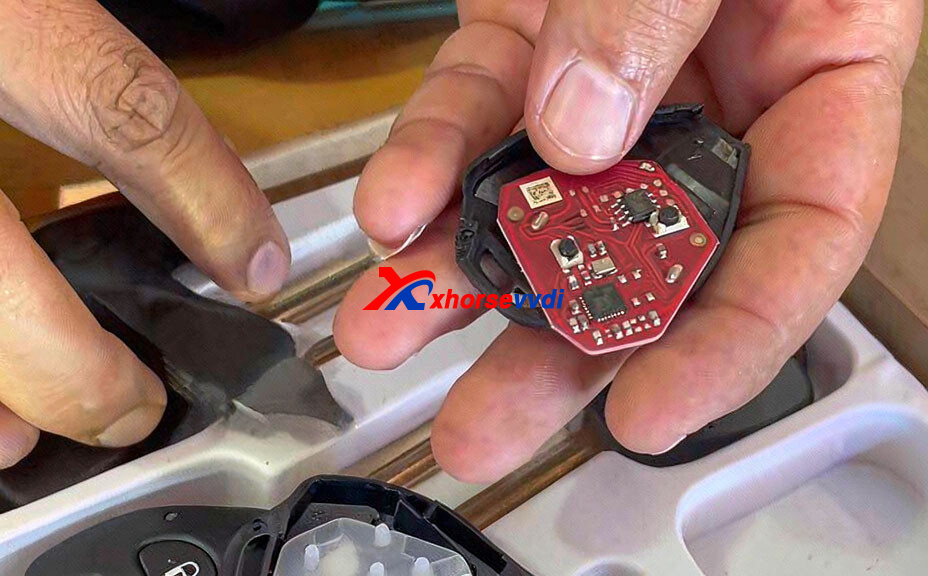
If you work with Toyota smart keys and remote generation, you may have noticed that newer batches of Xhorse XKTO series Toyota remotes—such as Xhorse XKTO24EN, XKTO25EN, and XKTO22EN—are now shipping with a Red PCB instead of the older Green PCB.
This hardware change has caused some confusion, especially when these remotes are used for modified flip key projects. If you encounter a “Write Error” during remote generation, don’t worry. The issue can be resolved with a simple adjustment to the generation process. This guide explains what to do when working with the new Red PCB Toyota remotes.
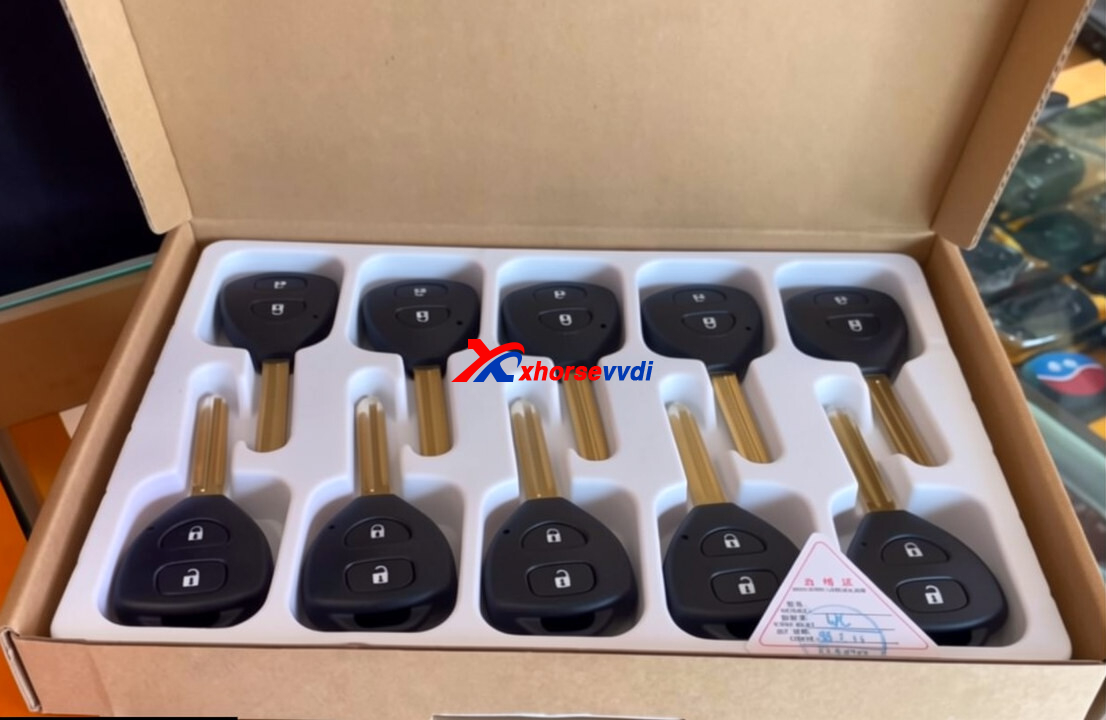
Green PCB vs. Red PCB: What Has Changed?
Older Toyota remotes were commonly equipped with a Green PCB, and their generation and cloning procedures followed a different process. With the introduction of the newer Red PCB versions, the programming method has been slightly updated. The main difference is how the programming device needs to connect to and communicate with the remote during the writing process.
The Issue: “Write Error”
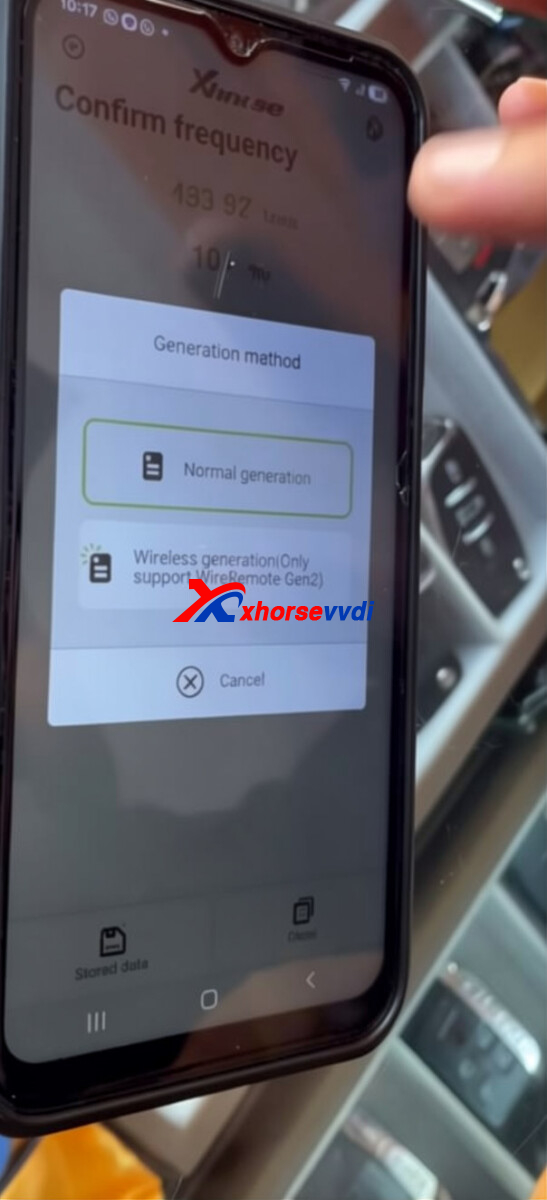
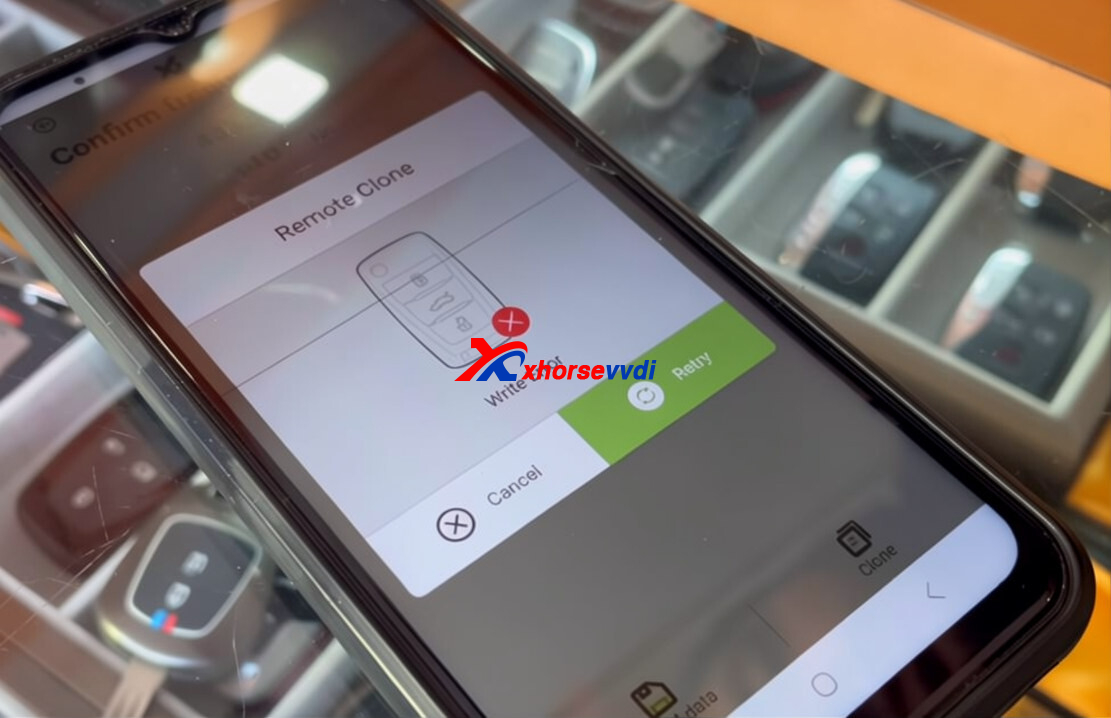
When generating a Toyota remote with the new Red PCB through a wired connection, selecting the Normal Generation option may sometimes result in a “Write Error.”
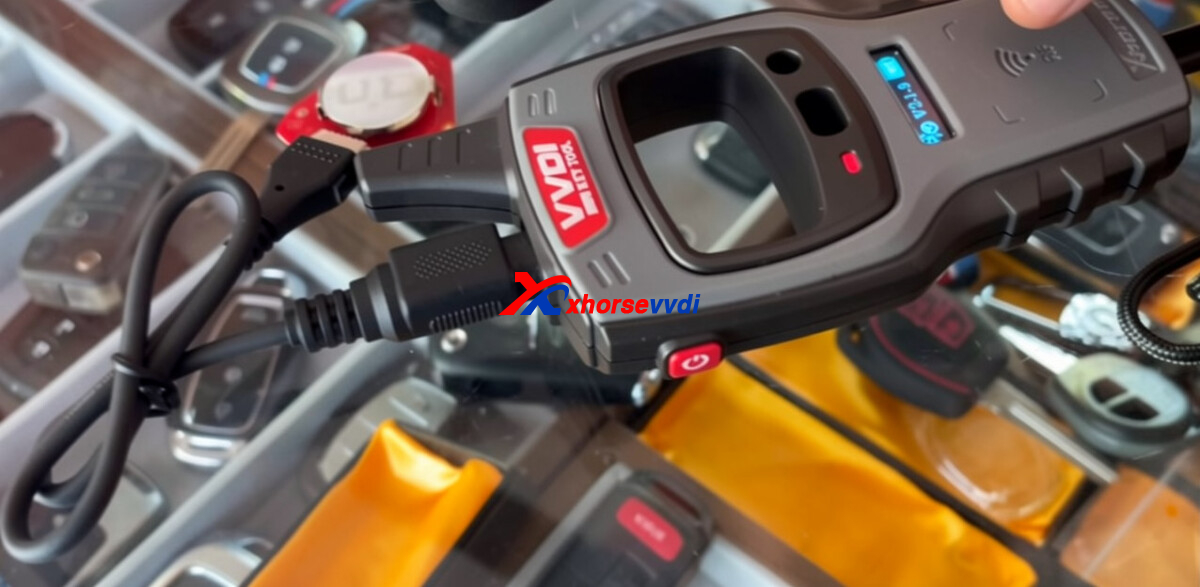
This issue does not occur with every remote, but it has been reported relatively often with the latest Red PCB stock. If you encounter this message on a device such as the VVDI Mini Key Tool, there is no need to worry. The issue can be resolved with a simple workaround.
The Solution: Generate the Red PCB Remote Successfully
If a write error occurs when programming the remote via the wired connection, try the following steps:
Disconnect the Wired Cable: Remove the programming cable from the remote.
Install the Battery: Insert a battery into the remote to provide power for wireless communication.
Program Wirelessly: Once powered, proceed with the wireless generation process.
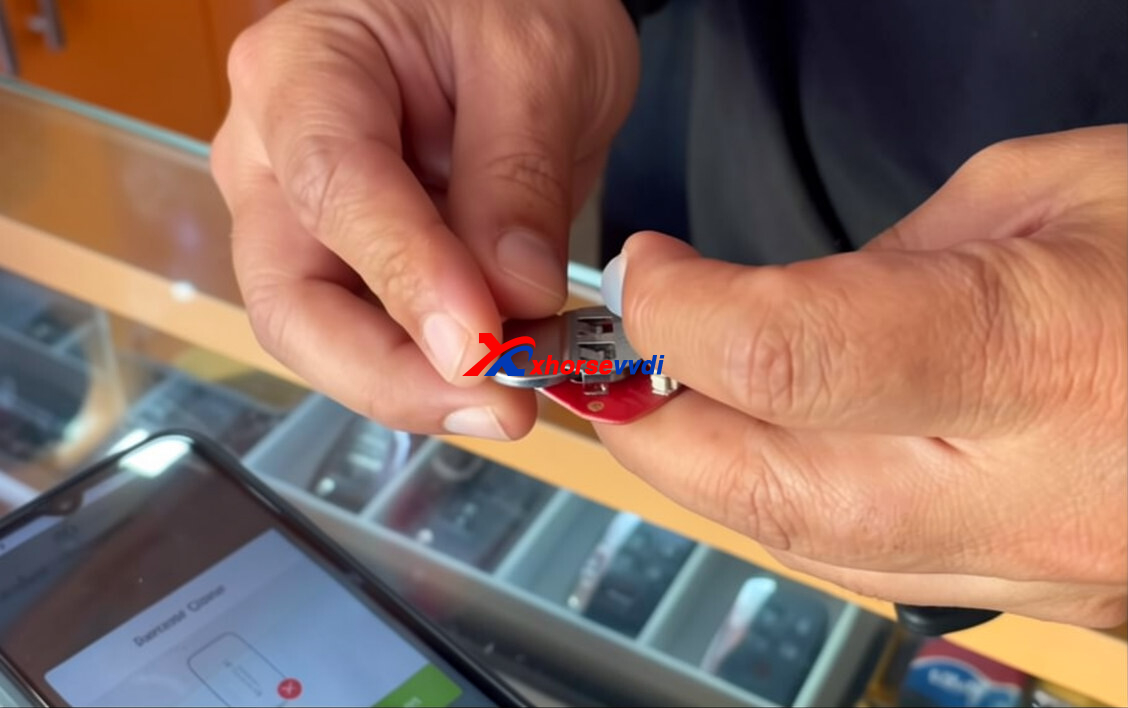
Select Wireless Generation: Exit the current procedure on your device, then go to the Wireless Generation Gen2 option to continue.
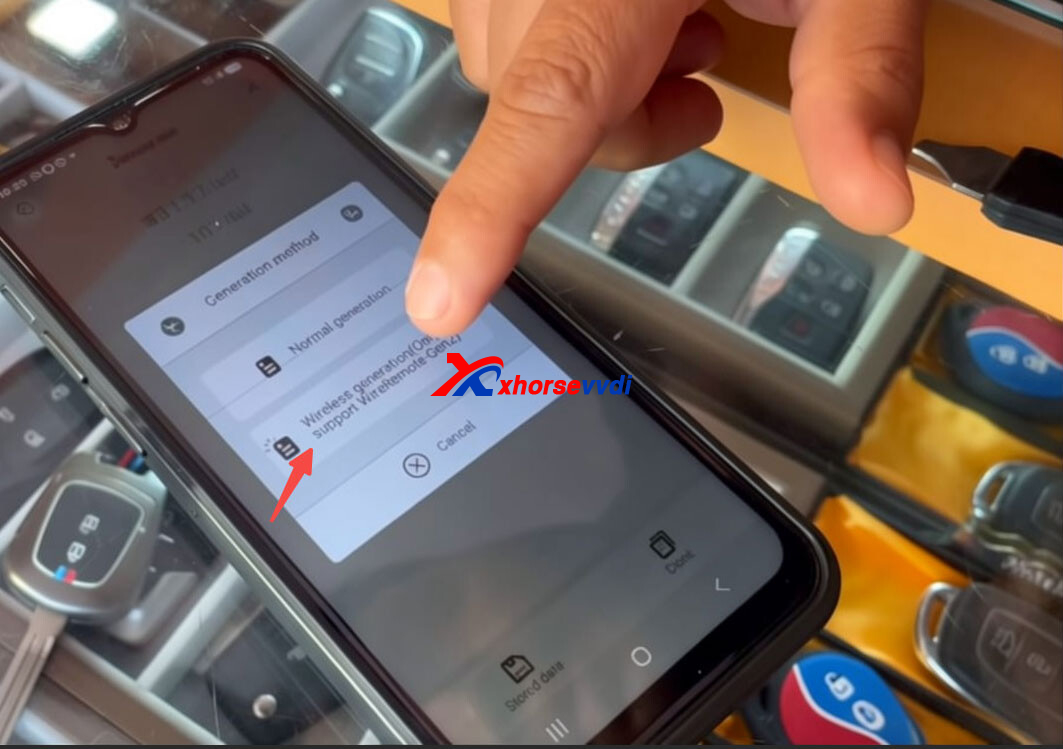
Press Any Button: Once wireless generation starts, press the Lock or Unlock button on the remote once to activate it and complete the connection.
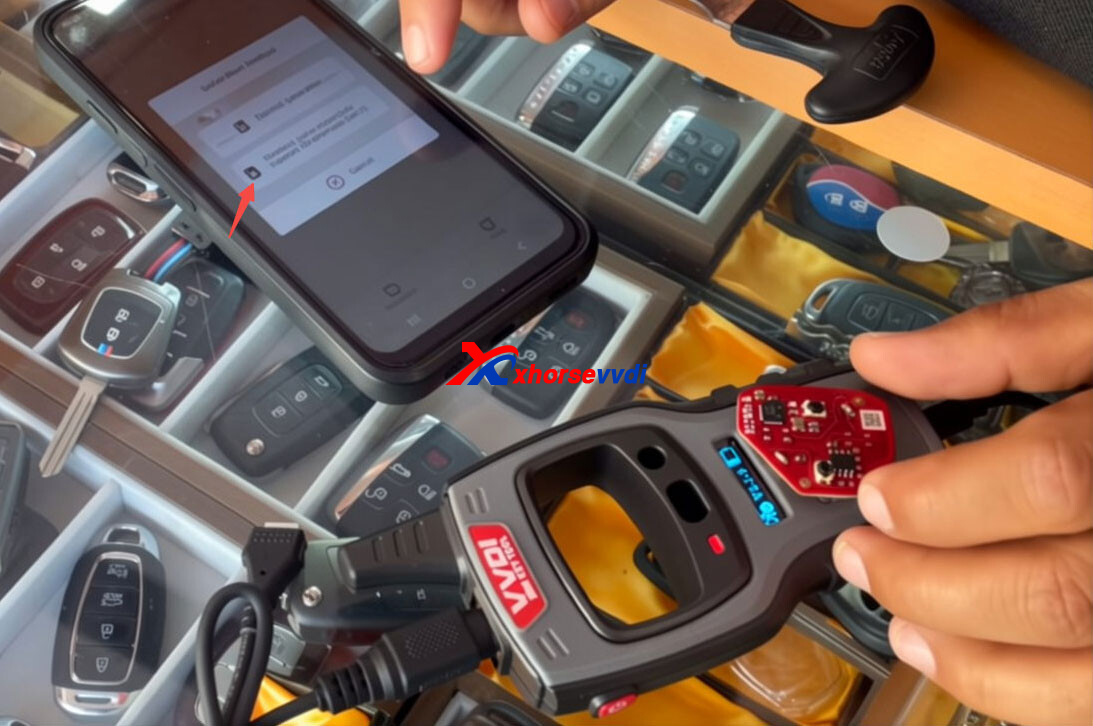
Wait for Completion:The generation process will start automatically. Monitor the progress displayed on the screen while the device works wirelessly. When the message “Generate OK” appears, the process has been completed successfully.
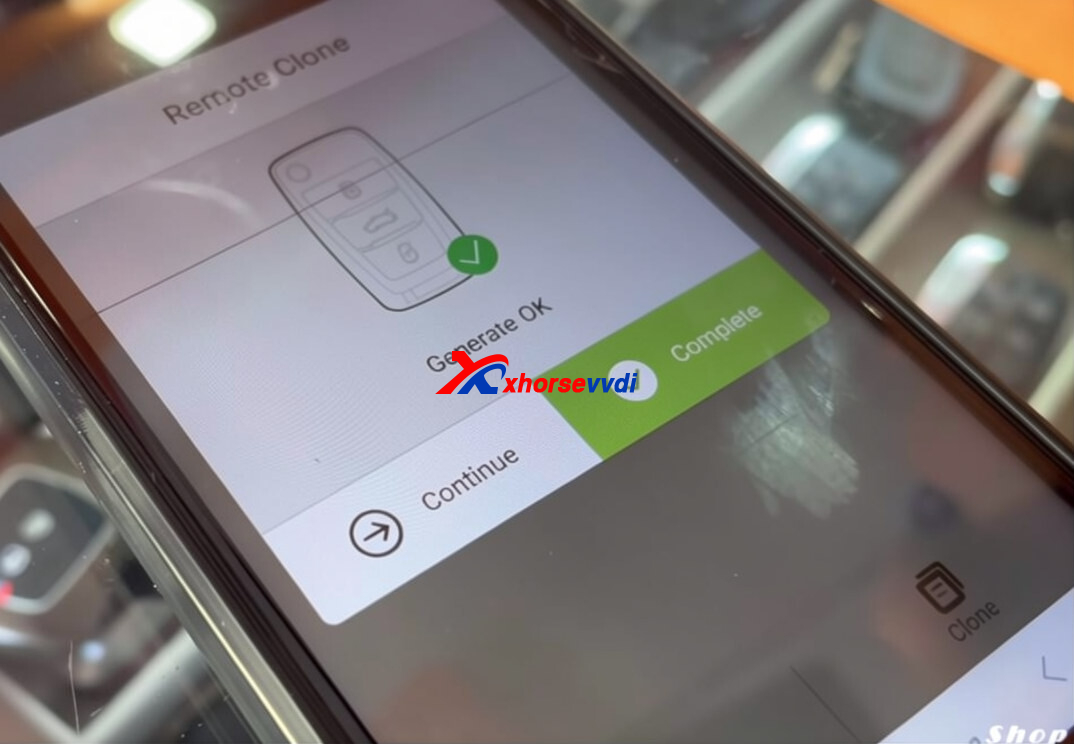
The new Xhorse Toyota Red PCB remotes support both wired and wireless generation methods. If the wired generation fails with a write error, you can easily switch to the wireless method with a battery. This provides a convenient alternative for successfully generating Toyota Type remotes and creating modified flip keys.
Skype: xhorsevvdi.com
Whatsapp: https://wa.me/8613983756354


 Whatsapp:
 Skype: