
This tutorial walks you through adding a new dealer key to BMW G-series vehicles equipped with a BDC3 module using the Xhorse Key Tool Plus. The entire workflow includes reading vehicle data, extracting the original key information, and generating a new dealer key by two different methods. Follow each step closely for a smooth programming experience.
Step 1: Tools & Preparation
Before starting, make sure you have the following:
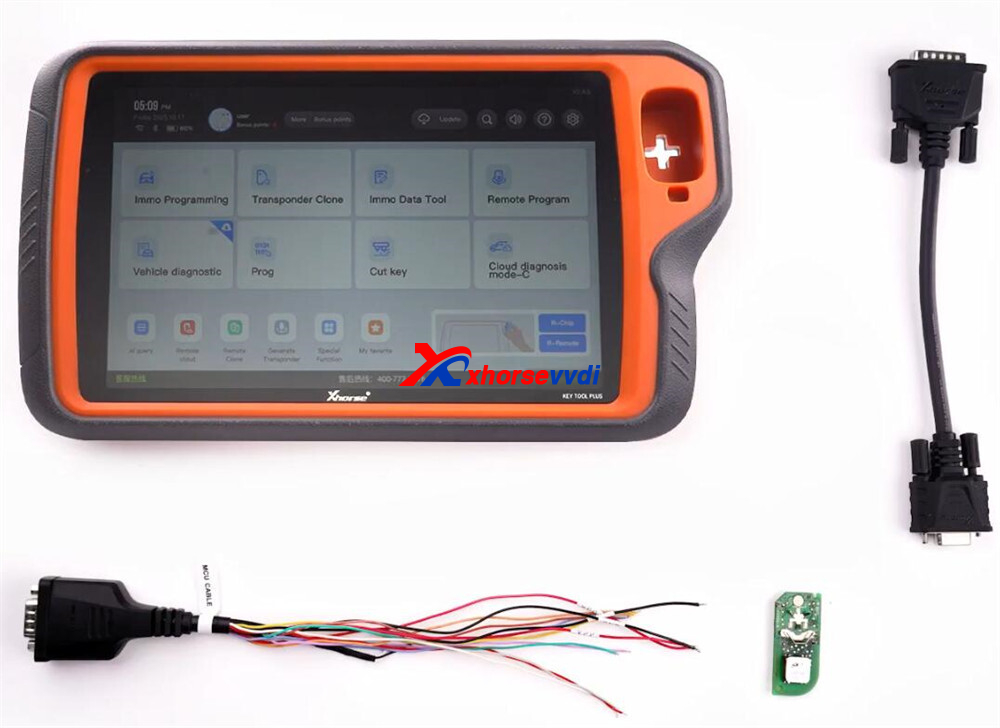
- VVDI Key Tool Plus Pad
- Activated BMW G-series BDC3/IMMO license
- MCU Cable + DB15 Cable
- Soldering iron and solder materials
- Original working key
- Factory key blank or VVDI BMW dedicated key
Step 2: Read Vehicle Information
Power on the Key Tool Plus and navigate to:
Immo Programming → BMW → Select from system → G/U Chassis BDC3/BCP IMMO System → Start programming
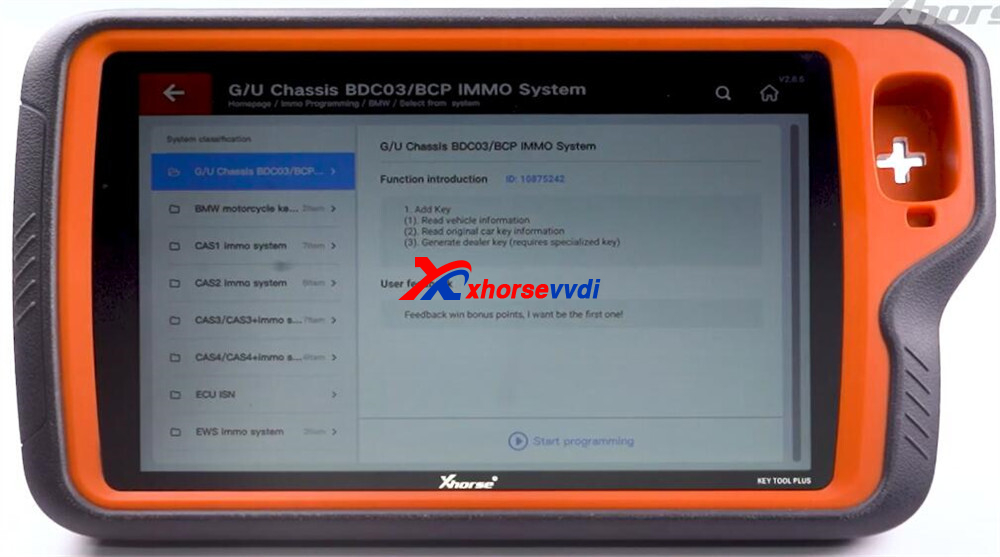
Tap Read vehicle information.
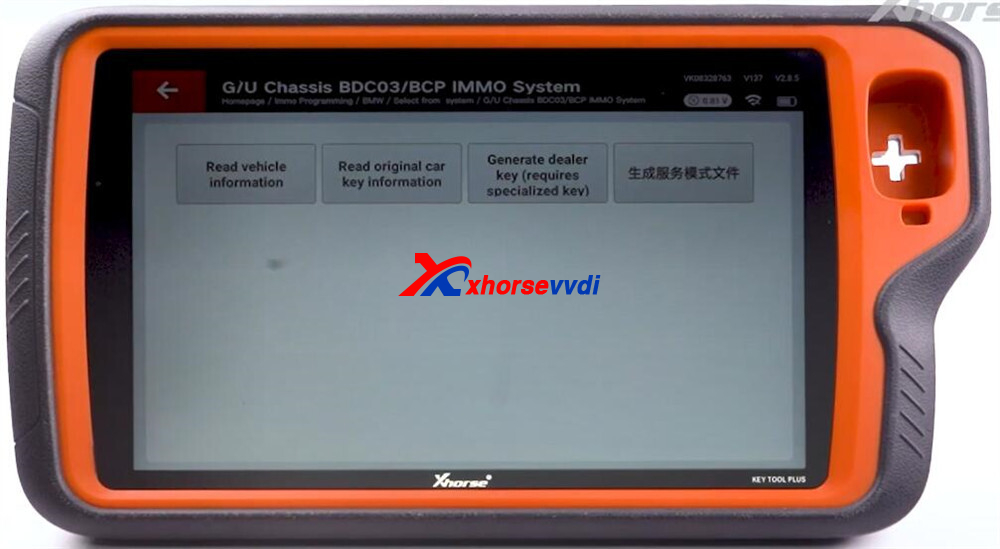
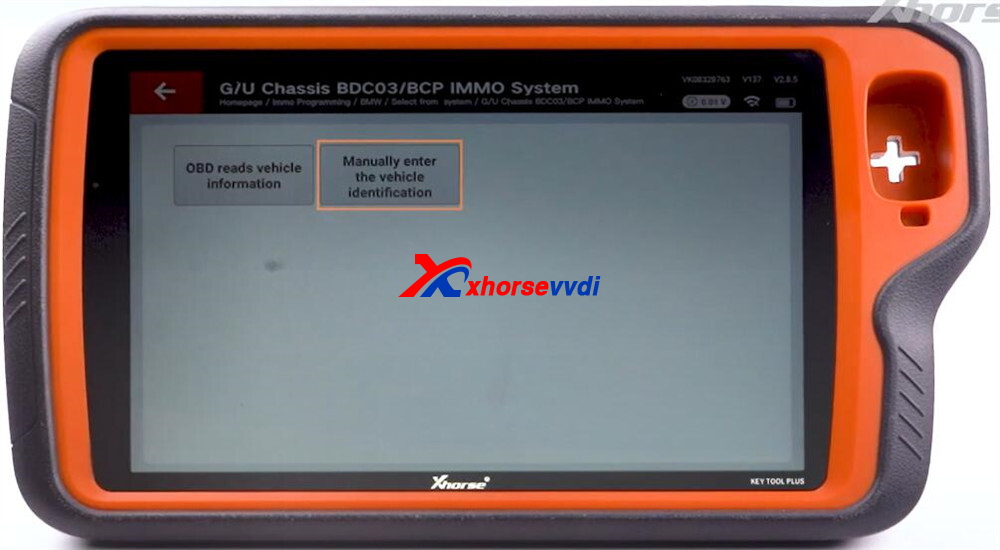
You can either manually enter the VIN or let the device read it through OBD.
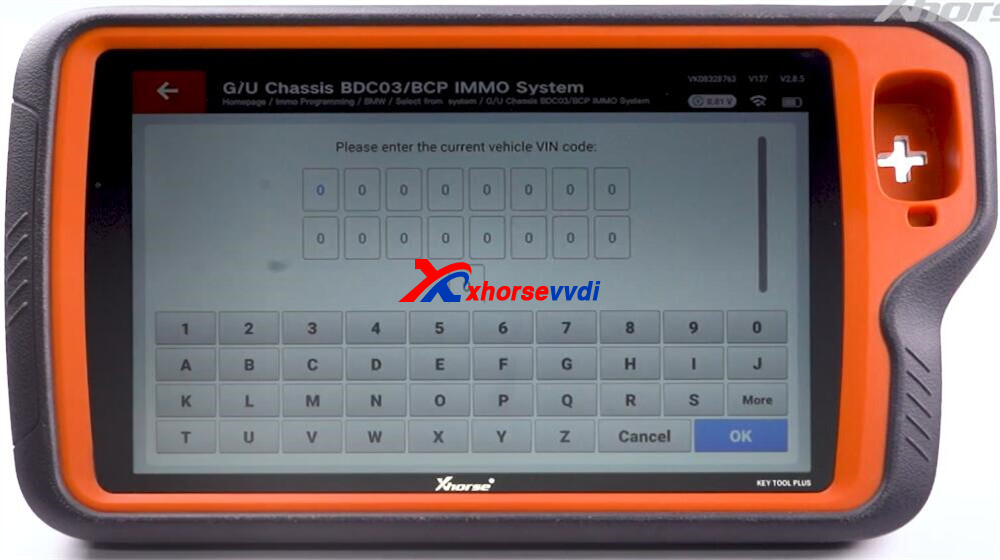
(Here, we choose manual VIN entry.)
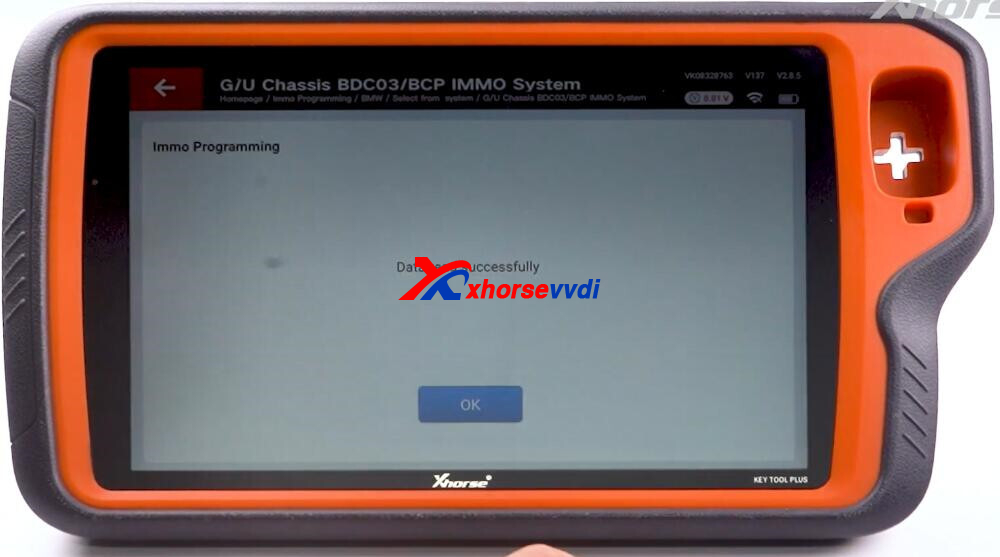
After the system successfully retrieves the data, continue to the next step.
Step 3: Read the Original Key Data
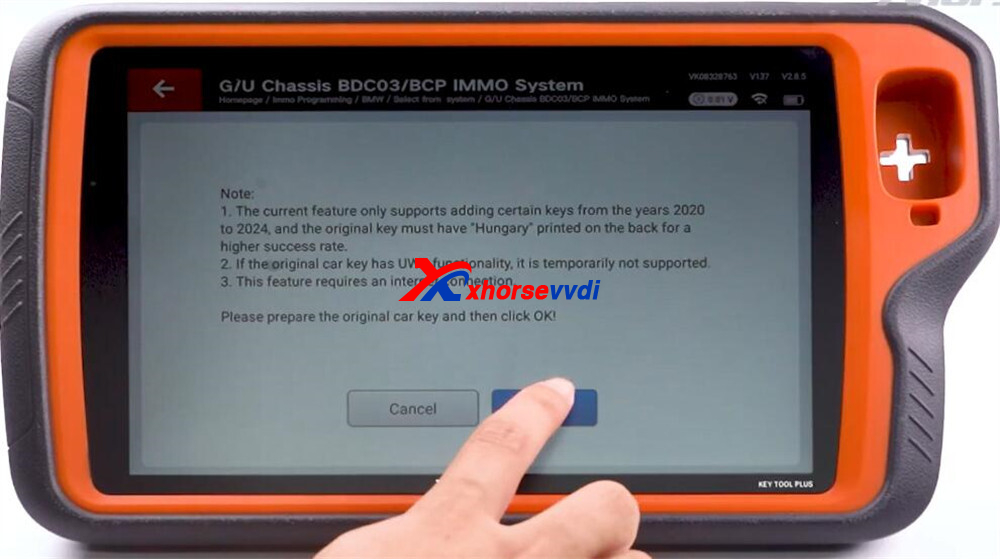
Select Read original car key information.
Confirm the prompts on the screen and press OK.
Check the wiring reference diagram to locate the correct pin pads on the original key PCB.
(Note: Different key versions may use different cable colors.)
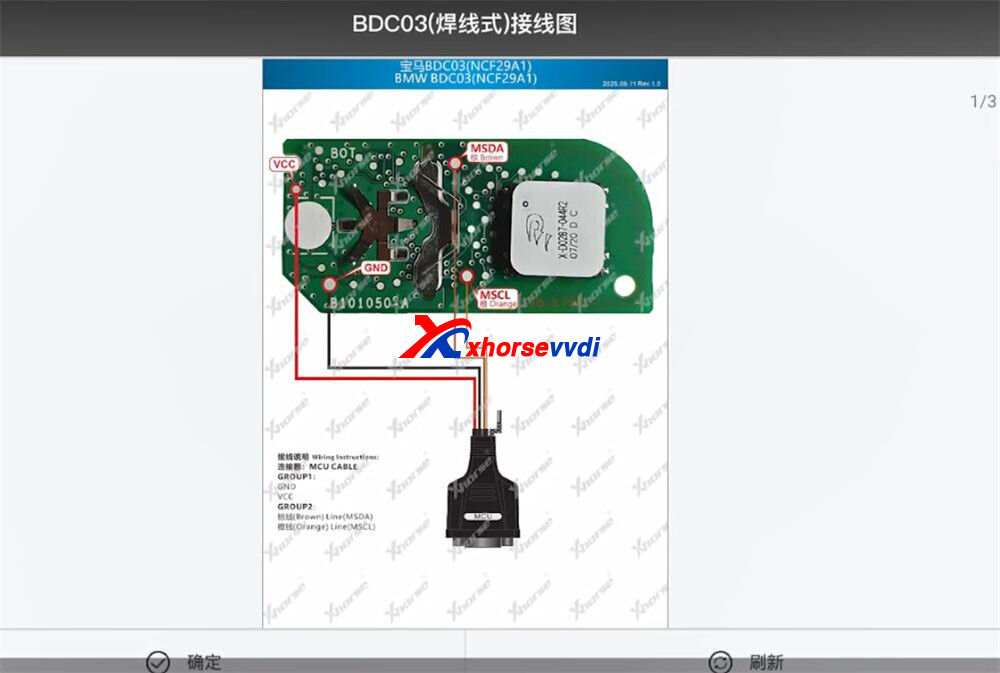
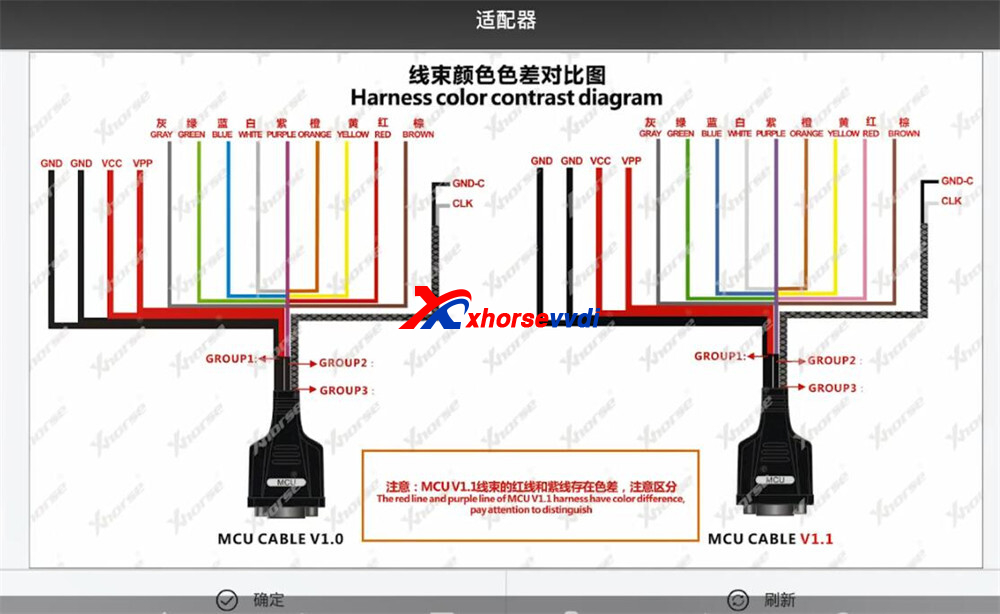
Solder the four MCU wires to their designated points carefully.
⚠ Critical reminder:
Make sure MSDA and MSCL wires are not reversed.
Ensure clean solder joints to avoid read errors.
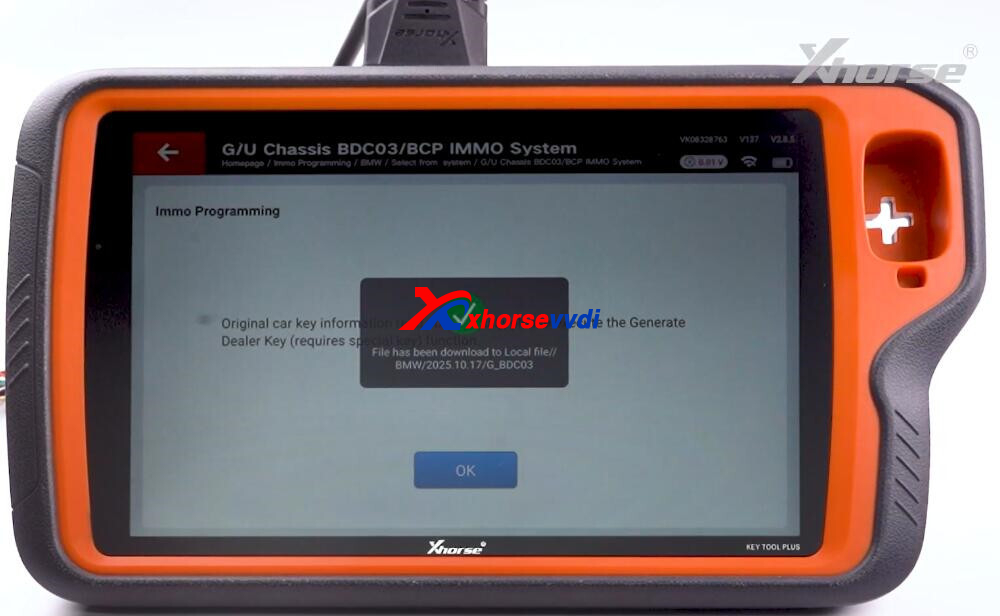
Connect the MCU cable to the VVDI Key Tool Plus and press Read.
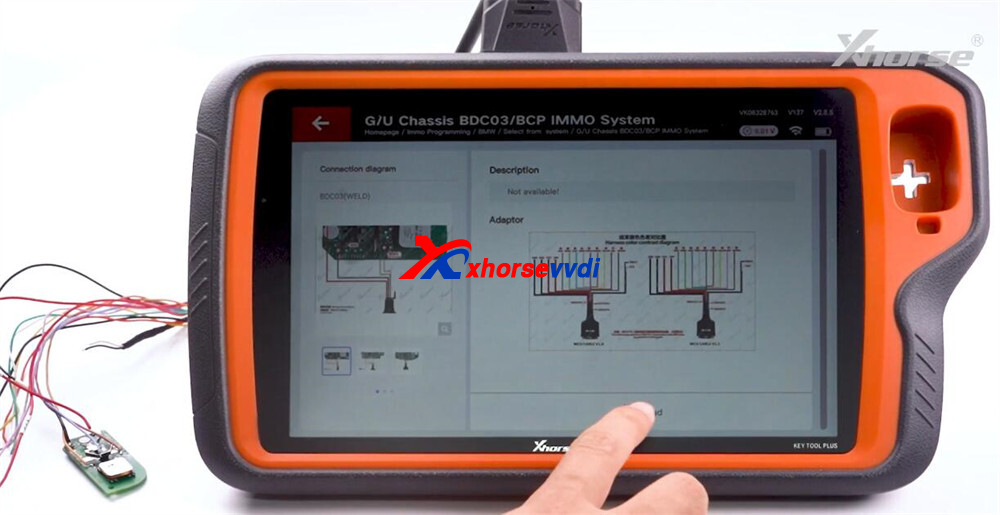
Save the extracted key data file.
Then upload it to generate the Service File, and save that as well.
Step 4: Generate the Dealer Key
You can create the new key using either a factory original blank or a VVDI BMW dedicated key.
Method A: Generate with Original Factory Key
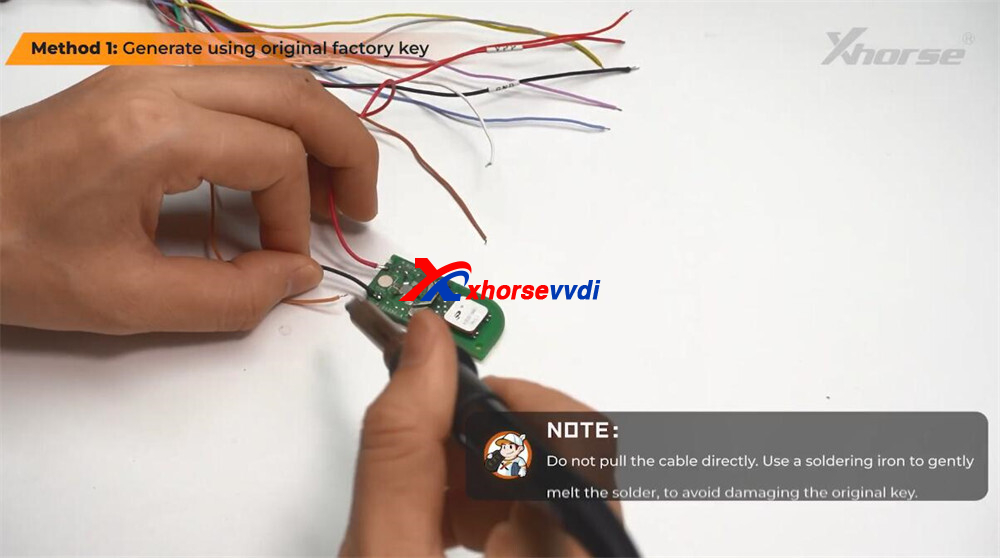
1.Carefully desolder the MCU cable from the old key.
(Gently heat the solder — do not yank the wires.)
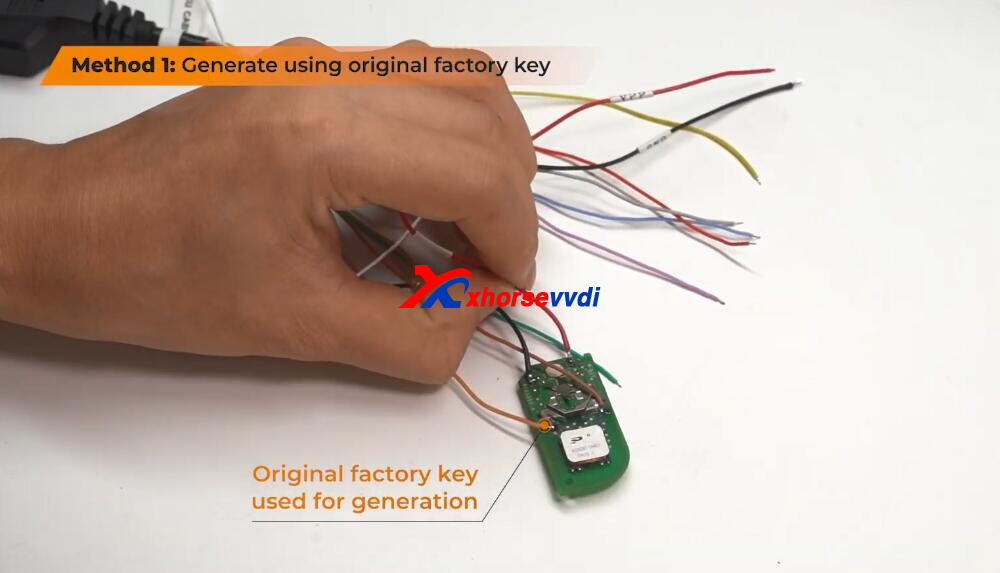
2.Solder the same four wires onto the new Factory Key PCB.
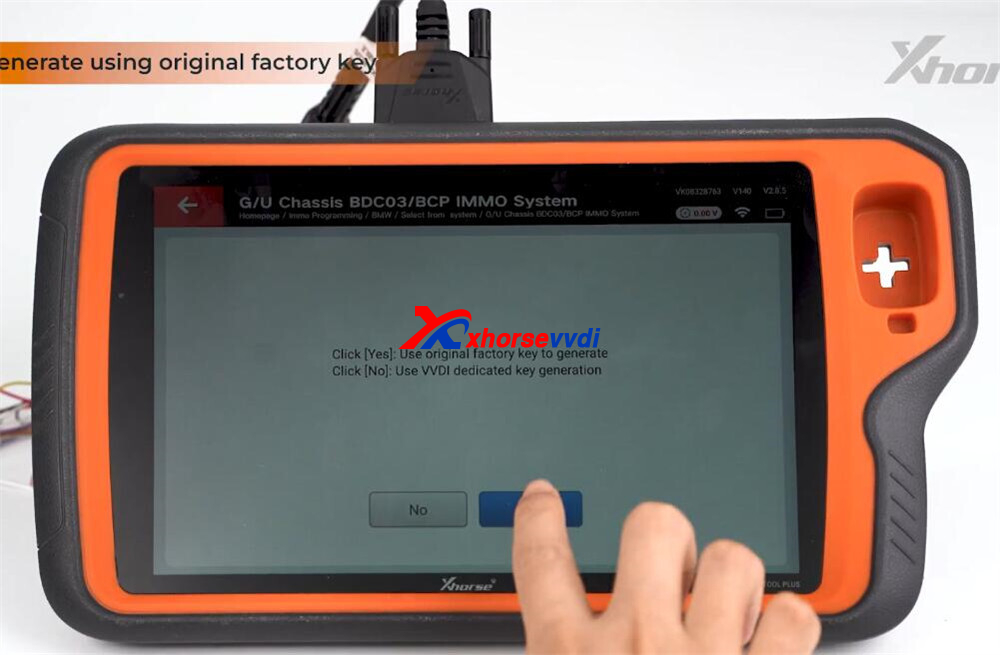
3.On Key Tool Plus, choose:
Yes — Generate using Original Factory Key
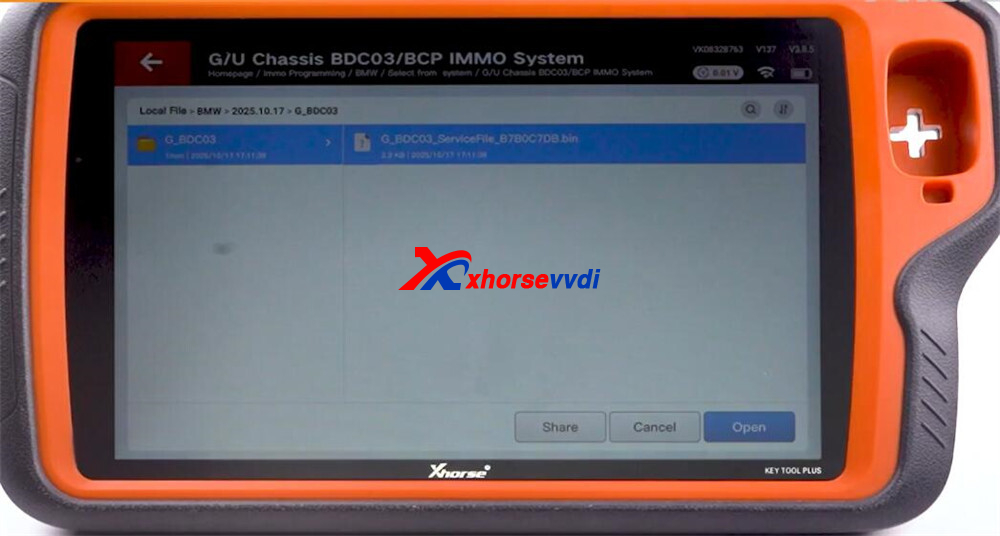
4.Load the previously saved Service File.
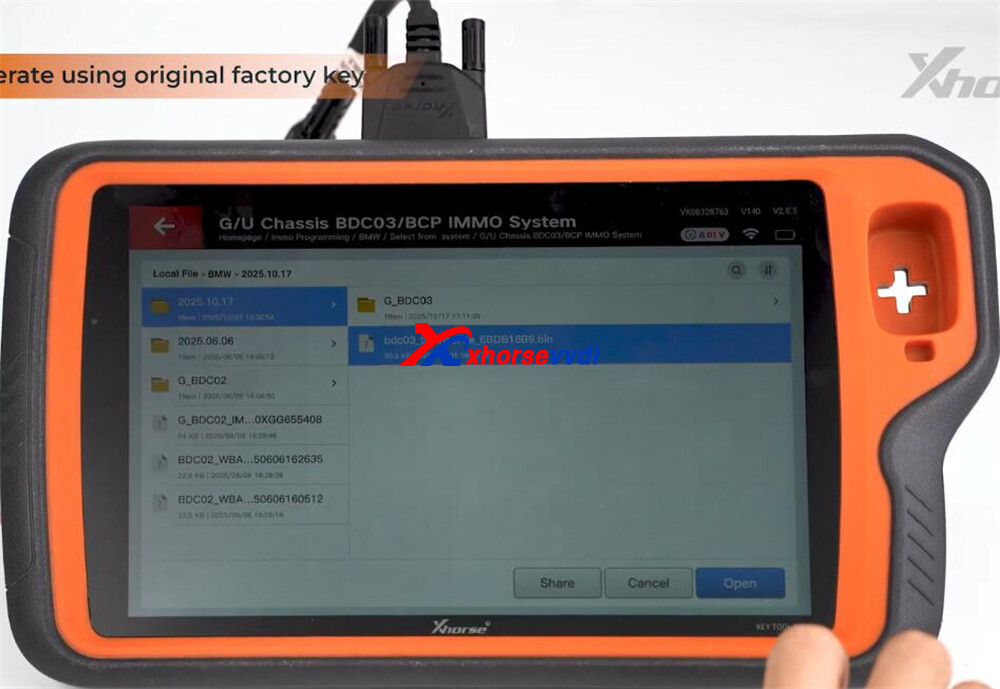
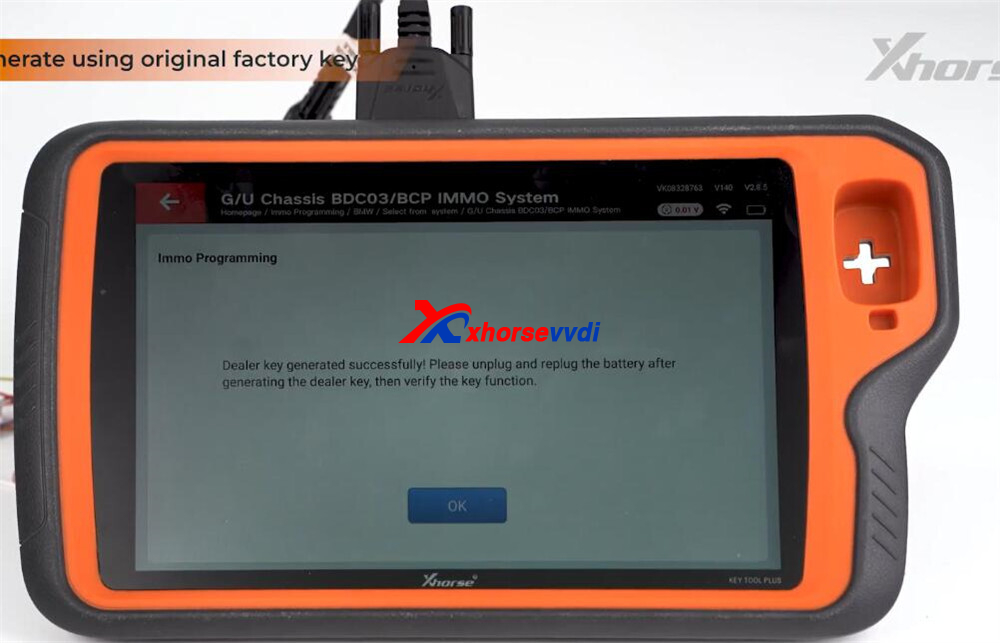
5.Confirm wiring and press Write to program the new key.
Once writing completes, the dealer key is ready.
Method B: Generate with VVDI BMW Dedicated Key
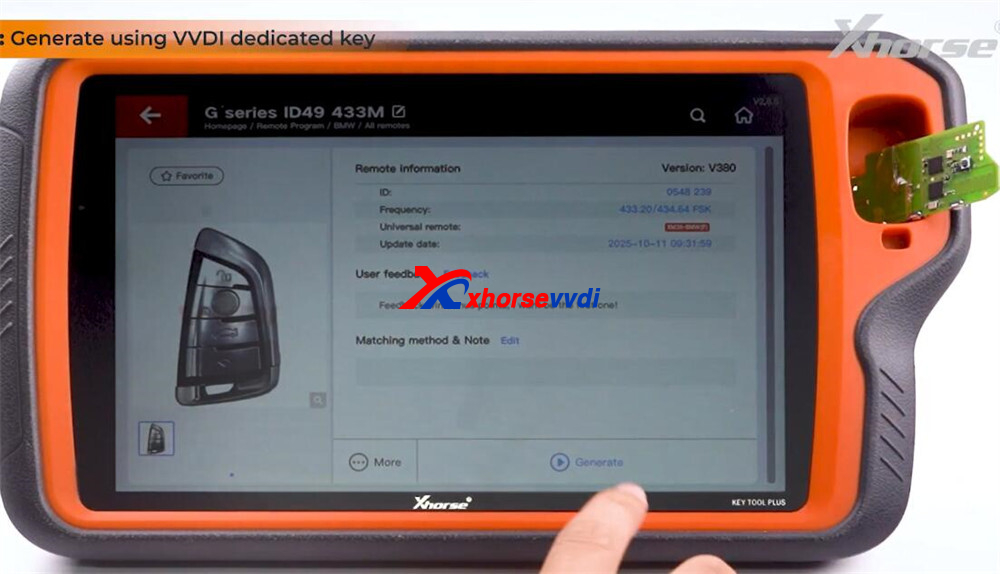
1.First, generate the remote:
Enter the remote generation menu
Choose the matching BMW model
Follow on-screen instructions with the VVDI BMW dedicated key
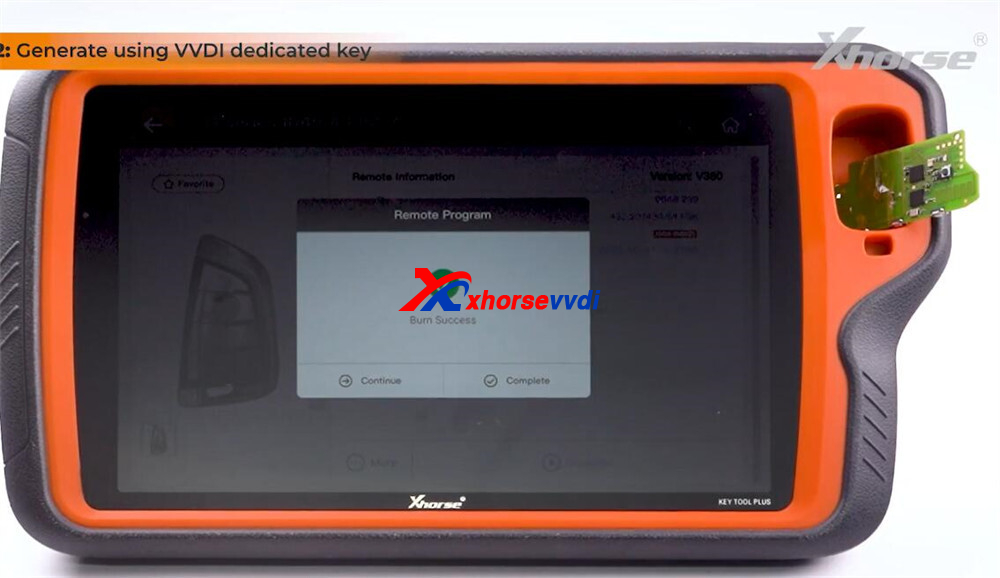
2.After the remote is generated, return to the IMMO menu.
3.Select: No — Generate using VVDI Dedicated Key
4.Load the same Service File.
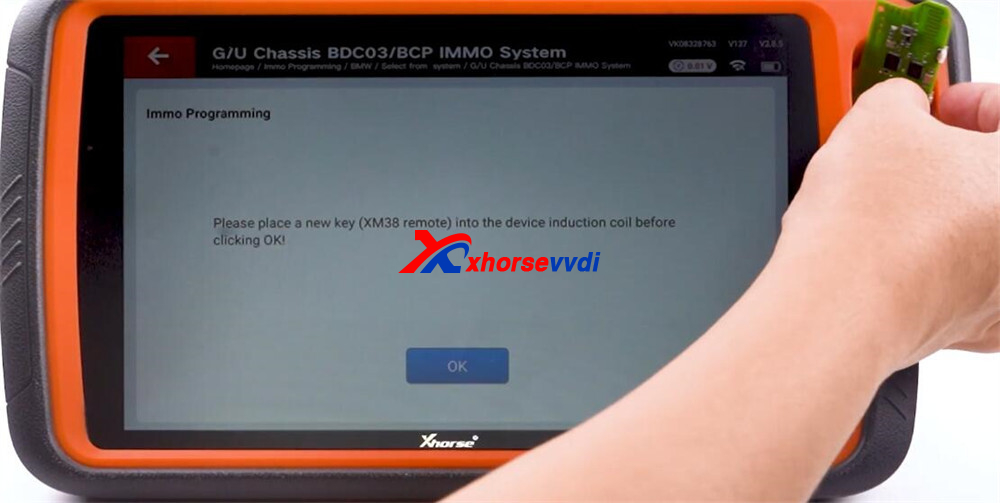
Place the VVDI key on the induction coil and begin key generation.
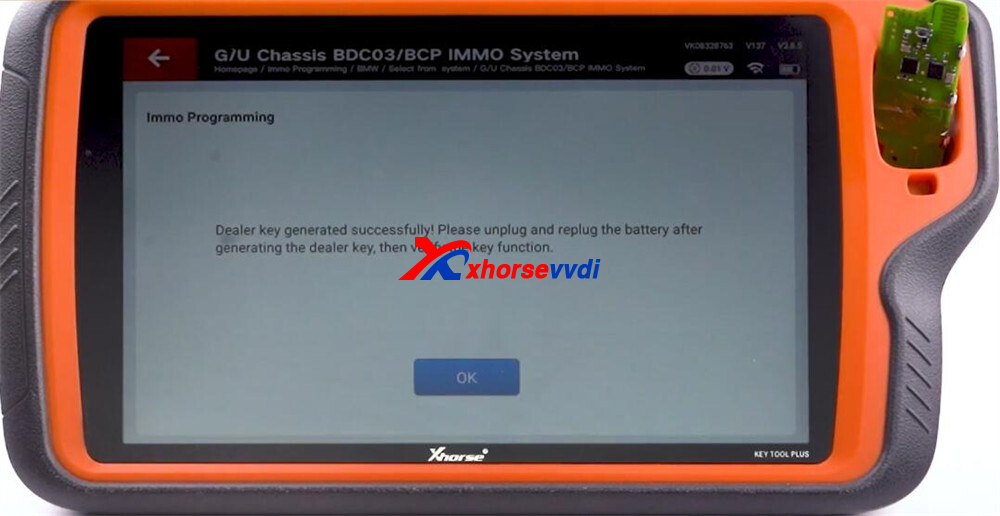
5.Wait for the Key Generation Successful message.
Step 5: Final Check
Reconnect the vehicle battery if disconnected.
Test every function of the new key:
- Lock / unlock
- Comfort access (if applicable)
- Engine start
If all functions operate normally, the key programming process is complete.
That’s the full procedure for adding a new key to a BMW G-series equipped with a BDC3 module using the Xhorse VVDI Key Tool Plus Pad.
Skype: xhorsevvdi.com
Whatsapp: https://wa.me/8613983756354


 Whatsapp:
 Skype: